How to clean up a Gmail inbox
A Gmail inbox with 10,000+ unread messages is mostly newsletters, promotions, and notifications - not anything you actually need. The fastest path to a clean inbox is: nuke the Promotions tab, mass-unsubscribe so they stop coming back, archive everything older than a year, then build filters to keep it that way. Forty-five minutes of work, total. And if the backlog feels paralysing before you even start, our guide to email overwhelm tackles that side of the problem.
Try ClearMyInbox free - bulk unsubscribe in one click, free to start.
Step 1: nuke the Promotions tab (5 minutes)
Promotions is where Gmail puts marketing emails. For most people it's 30-60% of the entire inbox.
- Click the Promotions tab at the top of the inbox.
- Click the select-all checkbox at the top-left.
- Click Select all conversations in Promotions when the banner appears.
- Click the trash icon. Empty Trash to make it permanent.
Full walkthrough: how to delete all promotional emails in Gmail.
Step 2: mass-unsubscribe (5 to 10 minutes)
The Promotions tab will refill itself in days if you don't unsubscribe from the senders. This is where most cleanup attempts fail - people delete, then give up when the same emails come back.
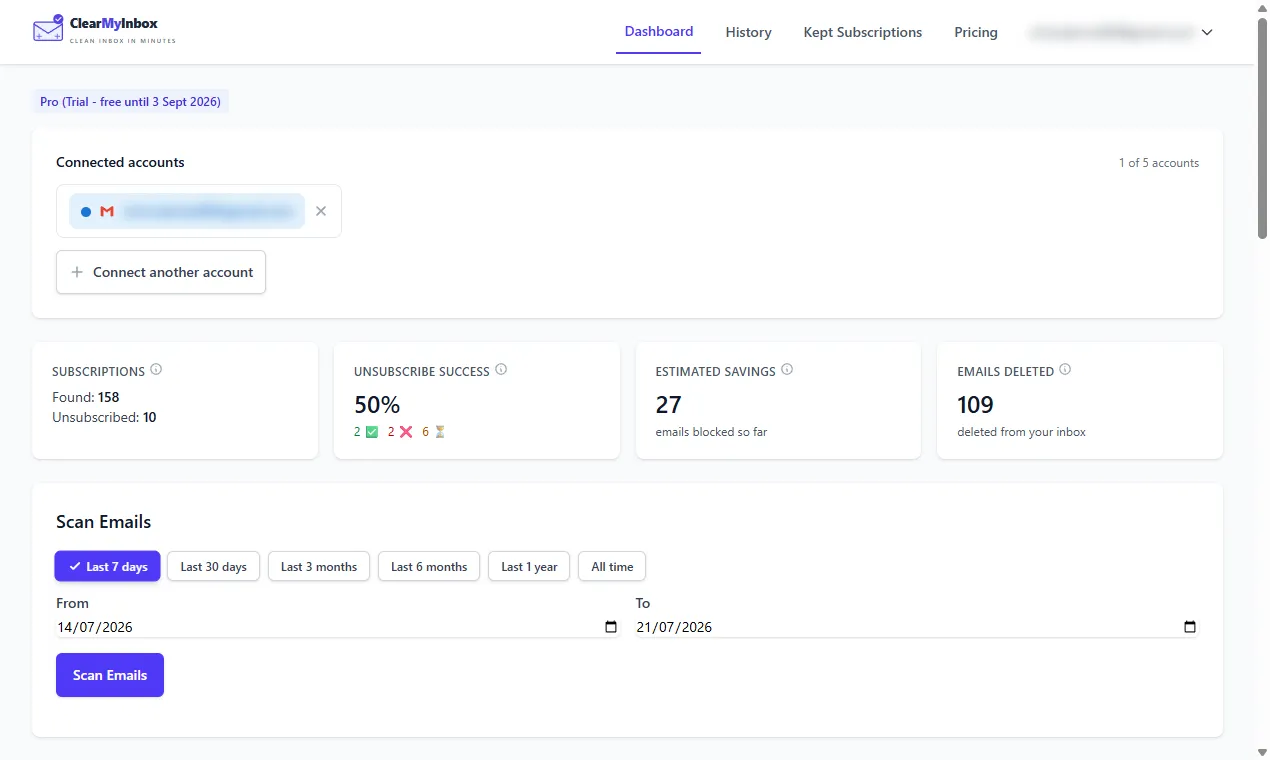
ClearMyInbox scans your inbox, finds every newsletter and promotional sender, and unsubscribes you from selected ones in batch. Free to start, no credit card. Alternative methods: our mass-unsubscribe guide covers the manual approaches.
Step 3: archive everything older than a year (5 minutes)
Old mail you haven't touched in 12 months is unlikely to need attention. Archive it to get it out of the inbox without losing it (Gmail keeps archived mail searchable forever).
- In the search bar, type
older_than:1y in:inboxand press Enter. - Click the select-all checkbox.
- Click Select all conversations that match this search.
- Click the archive icon (file folder with a down arrow).
Step 4: clean up the Updates and Forums tabs (5 minutes)
Updates is mostly transactional emails (order confirmations, account changes). Forums is mailing lists and Google Groups. Same workflow:
- Open each tab.
- Use
category:updates older_than:6morcategory:forums older_than:6mto find stale messages. - Select all, archive (or delete if you're sure).
Step 5: build filters that maintain the clean state (10 minutes)
Without filters, the inbox creeps back. Build 3 filters that handle 90% of incoming clutter:
- Promotions auto-archive - search
category:promotions, create filter, tick Skip the Inbox and Apply label "Promotions". Now promotional mail goes to a label instead of cluttering the inbox. - Notifications auto-archive - search
from:(notify@OR no-reply@OR donotreply@), filter, skip inbox, label "Notifications". - Newsletter digest - search
"unsubscribe", filter, skip inbox, label "Newsletters". Now newsletters land in a folder you can read on your own time.
Step 6: handle attachments (optional)
If you're tight on storage:
- Search
has:attachment larger:10mfor big-file emails. - Search
has:drivefor shared Drive links (these don't take Gmail storage). - Delete what you don't need, empty Trash.
Maintain it
Inbox cleanup is once. Maintenance is forever. The filters in step 5 do most of the work. Beyond that:
- Once a week, glance at the auto-archived labels and delete in bulk if you don't want any of it.
- Every time you sign up for something new, ask "do I want this in my inbox or my Newsletters label?" and pre-build a filter.
- If a sender keeps creeping past your filters, unsubscribe or block immediately - don't let it accumulate.
Frequently asked questions
How long does it take to clean a 50,000-email Gmail inbox?▾
Following the workflow below, about 30 to 45 minutes - most of which is the unsubscribe step. Without bulk unsubscribe it can take several hours.
Should I delete or archive old emails?▾
Archive. Storage in Gmail is plentiful (15 GB free, more on paid plans) and Gmail's search makes archived mail trivially findable. Deleting only matters if you're tight on storage or have legal/privacy reasons to remove specific mail.
Will cleaning up my inbox affect my Gmail storage quota?▾
Only if you delete (and empty Trash) or remove large attachments. Archiving doesn't free space.
How do I find the biggest space-hogging emails?▾
Search has:attachment larger:10m to find emails with attachments over 10 MB. Sort by date and delete what you don't need.
Will Gmail eventually clean itself?▾
No. Gmail keeps everything indefinitely unless you delete or it hits the storage limit. The Promotions tab and spam folder auto-delete after 30 days, but the main inbox doesn't.