How to delete all promotional emails in Gmail
To delete all promotional emails in Gmail, open the Promotions tab, click the select-all checkbox at the top, then click Select all conversations in Promotions, and hit the trash icon. Empty Trash to remove them permanently. The whole thing takes about 30 seconds.
Try ClearMyInbox free - bulk unsubscribe in one click, free to start.
Step-by-step (Gmail web)
- Open Gmail at
mail.google.comand click the Promotions tab at the top of the inbox. If you don't see tabs, your inbox may be set to a different layout - jump to the tabs section below to turn them on. - Click the checkbox at the top-left of the message list. This selects every message on the current page (usually 50 or 100).
- A banner appears at the top: Select all conversations in Promotions. Click that link to extend the selection to every promotional email, not just the visible page.
- Click the trash can icon in the toolbar. Gmail moves all selected emails to Trash.
- From the left sidebar, click Trash, then Empty Trash now to delete them permanently. Otherwise Gmail keeps them in Trash for 30 days before auto-deleting.
Delete only old promotional emails
If you want to keep recent ones (in case there's a coupon you'll use), delete by age:
- Search
category:promotions older_than:6m- promotions older than 6 months - Search
category:promotions older_than:1y- promotions older than 1 year - Search
category:promotions before:2025/01/01- promotions sent before a specific date
Then use the same select-all-then-delete flow above on the search results.
On mobile (iPhone or Android)
The Gmail mobile app doesn't have a true "Select all" - you need to tap the avatar (round circle to the left of each email) to enter selection mode, then tap subsequent ones. The fastest workflow:
- Open the Gmail app and tap the menu icon (top-left).
- Tap Promotions.
- Tap and hold the avatar of the top email - selection mode activates.
- Tap the avatars of the next emails to add them.
- Tap the trash icon to delete the selected batch.
Realistically, the web flow is much faster. If you have hundreds of promotions to clear, do it from a browser.
Don't see the Promotions tab?
Some Gmail layouts hide the inbox tabs. To turn them on:
- Click the gear icon in the top-right and choose See all settings.
- Click the Inbox tab.
- Set Inbox type to Default.
- Tick Promotions under Categories.
- Scroll down and click Save Changes.
Delete more than promotions
The Promotions tab is usually the biggest single win, but it is not the whole inbox. The same select-all-then-delete flow works on any Gmail search. One difference matters: on a search result the banner reads Select all conversations that match this search rather than naming the tab. Miss that click and you only delete the 50 or 100 messages on screen instead of every match.
from:newsletter@example.com- one exact sender.from:(amazon.com)- everything from a domain. Order confirmations included, so check before you fire.from:(no-reply@) OR from:(notifications@)- the classic notification flood.before:2024/01/01 after:2022/01/01- an exact date range.larger:10m- the storage hogs. Deleting 200 of these often frees more space than deleting 20,000 newsletters.is:unread older_than:3m- the honesty filter. If it has been unread for three months, you were not going to read it.in:inbox, orin:anywhereto include archived mail - everything, when you have decided to start clean.
Deleting only clears the past. Whatever you delete this way arrives again next week unless you also unsubscribe, which is the section below.
Stop promotional emails from coming back
Deleting clears the past, not the future. If you don't unsubscribe, the same senders will keep filling your Promotions tab. Two ways to actually stop them:
- Unsubscribe from each sender (the proper way) - see how to unsubscribe from emails on Gmail.
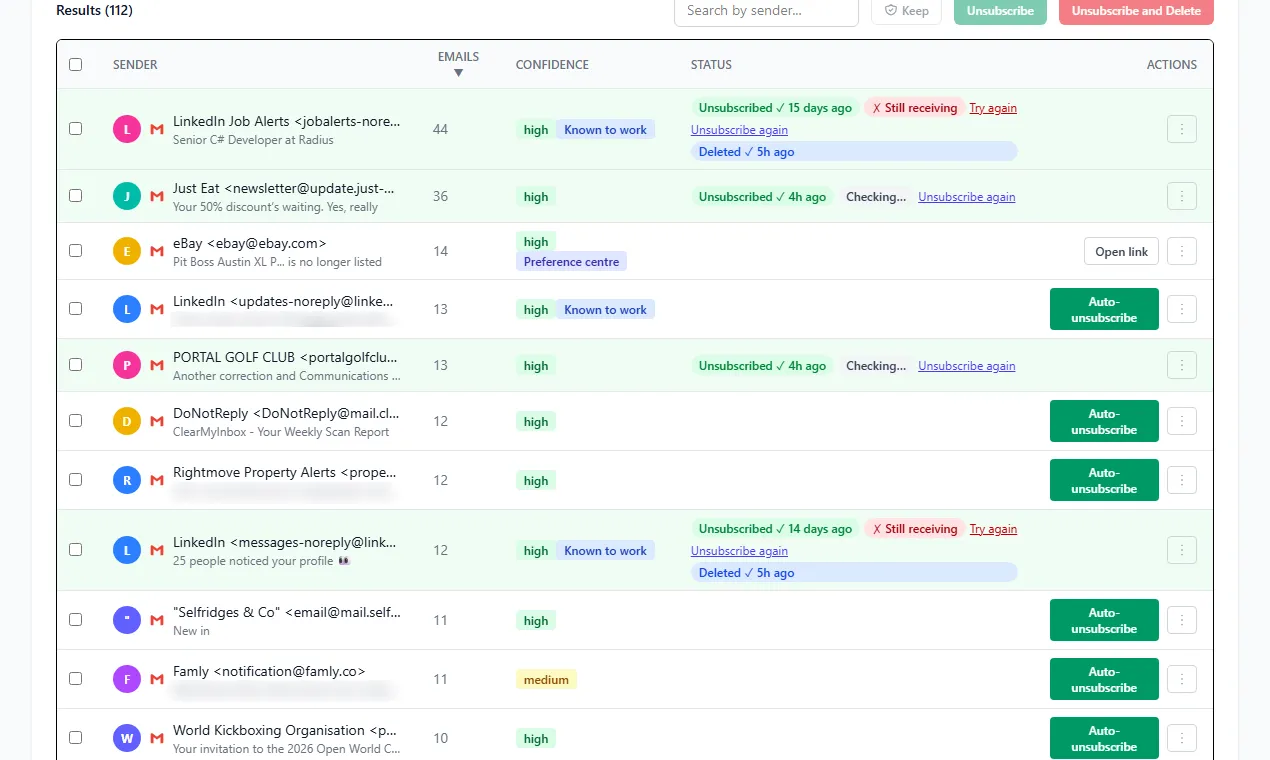
- Bulk unsubscribe with a tool - ClearMyInbox finds every promotional sender in your inbox and lets you opt out of all of them in one go. Free to start, no credit card.
Retailer mail is the usual repeat offender - if that's what dominates your Promotions tab, our guide to stopping shopping emails digs into that specific problem, and unsubscribing from Amazon emails gets its own walkthrough because Amazon runs so many separate lists.
Most of what refills a Promotions tab was signed up for by a pre-ticked box at checkout, which is why the tab grows back even after a thorough clear-out.
Frequently asked questions
Will deleting Promotions also delete order receipts and confirmations?▾
No - Gmail puts those in the Updates tab, not Promotions. The Promotions tab is reserved for marketing and newsletters. That said, double-check before deleting if you're unsure.
Can I delete promotional emails older than a certain date?▾
Yes. Use Gmail search with category:promotions older_than:1y to surface promotions older than a year, then select all and delete.
How do I delete all promotional emails on the Gmail mobile app?▾
Open the Promotions tab, tap the round avatar to the left of any email to enter selection mode, then tap the round avatars on subsequent messages. There's no native "Select all" on mobile, so you'll need to do this in chunks of about 50.
How do I stop promotional emails coming back?▾
Deleting only clears existing mail. To stop new ones, either unsubscribe from each sender (see our Gmail unsubscribe guide) or use a bulk tool. Filters that auto-delete don't actually unsubscribe you.
I deleted them all and the count is still wrong. Why?▾
Gmail caches counts. Refresh the page or wait a minute - the number updates eventually.