How to unsubscribe from emails on Outlook
To unsubscribe from emails on Outlook: open the message and click the Unsubscribe link near the top, then confirm. Outlook handles the opt-out via the standard List-Unsubscribe header. If the link is missing or the sender ignores it, the sections below cover Sweep, rules, and bulk approaches.
Try ClearMyInbox free - bulk unsubscribe in one click, free to start.
Method 1: the built-in Unsubscribe button (Outlook web and new Outlook)
Outlook on the web and the redesigned Windows/Mac app show an Unsubscribe link right at the top of the message - similar to Gmail's unsubscribe flow.
- Open
outlook.live.comoroutlook.office.comin your browser, or launch the new Outlook app. - Click the email you want out of.
- Look for Unsubscribe right below the subject line, next to the sender's name.
- Click it. A dialog appears - click Unsubscribe to confirm.
- Outlook sends the opt-out request directly using the email's
List-Unsubscribeheader.
Method 2: classic Outlook (old desktop app)
In the older Outlook desktop app (the one with the ribbon), unsubscribe shows as a yellow banner above the email body. If you don\'t see it, scroll to the bottom of the email and use the unsubscribe link in the footer.
Method 3: Outlook mobile (iOS and Android)
- Open the email in the Outlook mobile app.
- Tap the three-dot menu in the top-right.
- Tap Unsubscribe if available, or scroll to the email footer and tap the unsubscribe link.
Method 4: Sweep (kill the existing mail too)
Sweep is Outlook\'s superpower for inbox cleanup. It doesn\'t unsubscribe (use the button above for that), but it instantly removes every existing message from a sender plus optionally all future ones:
- Open an email from the sender.
- Click Sweep in the toolbar (looks like a broom).
- Choose what to do: Delete all messages from [sender], Delete all messages older than 10 days, or Always move messages to a folder.
- Click OK.
Combine Sweep with Unsubscribe for the cleanest result: Sweep deletes the past, Unsubscribe stops the future. For the full workflow, see how to clean up your Outlook inbox.
Method 5: bulk unsubscribe across your Outlook account
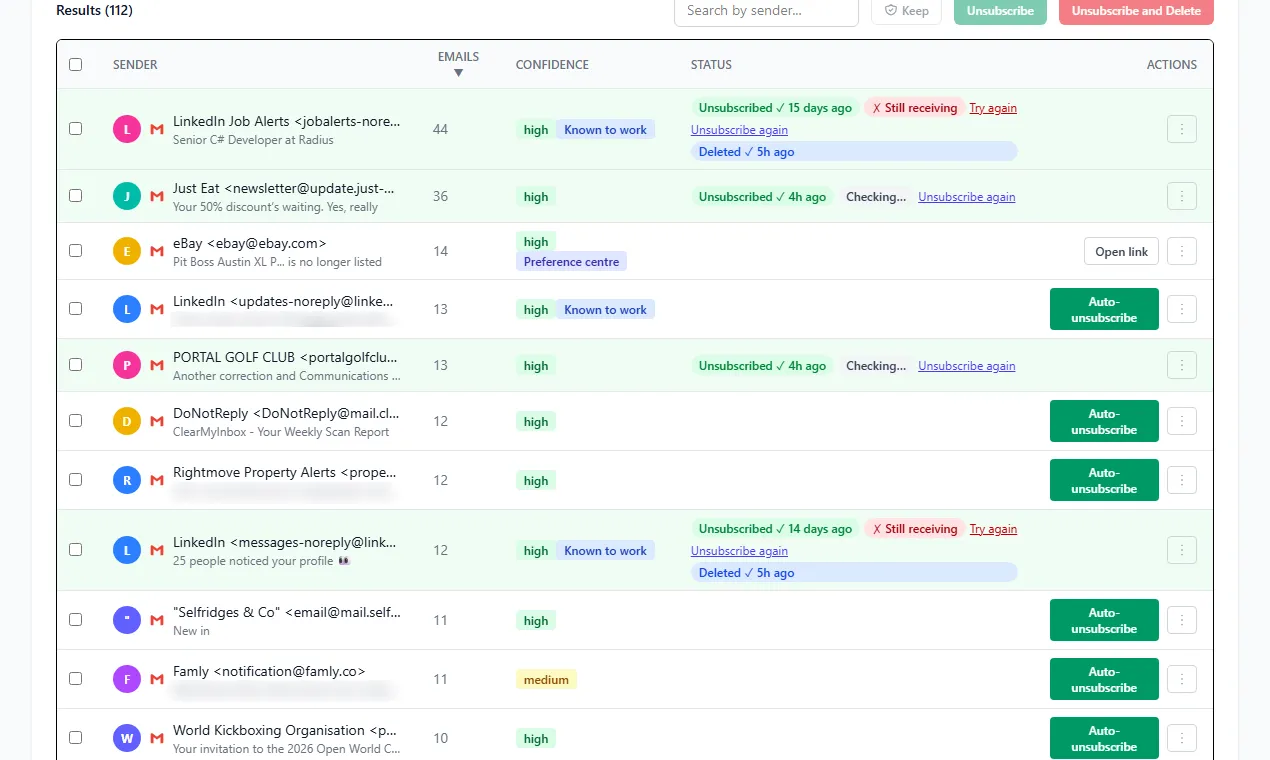
Outlook doesn\'t have a built-in bulk unsubscribe. ClearMyInbox connects to your Outlook account, scans for every newsletter and promotional sender, and lets you unsubscribe from selected ones in batches. Free to start, no credit card.
What if there's no Unsubscribe link?
For senders ignoring CAN-SPAM, three options:
- Block the sender - right-click the email, choose Block, and pick the address or the entire domain.
- Mark as junk - this routes future mail to Junk and signals Outlook's spam filter.
- Build a rule - in Outlook web, click Settings → Rules → Add new rule. Match on the sender or subject, set action to Delete or Move to Junk.
For the full decision tree - when to unsubscribe, block, mark as junk, or build a rule - see how to stop unwanted emails on Outlook.
Frequently asked questions
Where is the Unsubscribe button in Outlook?▾
In Outlook on the web and the new Outlook desktop app, the Unsubscribe link appears at the top of the message, just below the sender's name and subject - similar to Gmail. In classic Outlook, it shows as a banner above the email body. If you don't see it, the sender hasn't included a List-Unsubscribe header.
What's the difference between Outlook Sweep and Unsubscribe?▾
Sweep manages messages already in your inbox - it can move, delete, or auto-route them. It does not unsubscribe you from the sender. Unsubscribe sends an actual opt-out request. Use Unsubscribe to stop the mail; use Sweep to clean up what already arrived.
Does the Outlook Unsubscribe button actually work?▾
Yes - when the sender follows the standard. Outlook uses the same RFC-defined List-Unsubscribe header Gmail uses. The opt-out is sent directly to the sender. CAN-SPAM gives them 10 business days to honor it.
How do I unsubscribe from many emails at once on Outlook?▾
Outlook doesn't have a built-in bulk unsubscribe. Either work through them one by one, use Sweep to auto-delete by sender, or use a tool like ClearMyInbox to mass-unsubscribe across your Outlook account.
I clicked Unsubscribe but I'm still getting emails. What now?▾
Wait 10 business days. If it continues, mark messages as junk - the next time the sender hits the Outlook spam filter, it counts against their reputation. If a single company has multiple lists, you may need to update preferences on their site rather than relying on the link.