How to stop junk emails on Outlook
To stop junk emails on Outlook, train the junk filter by reporting every junk message, block persistent senders, build domain-wide rules, and tighten the junk filter sensitivity. Combined with Focused Inbox, this clears the vast majority of unwanted mail in a few days. Step-by-step below.
Try ClearMyInbox free - bulk unsubscribe in one click, free to start.
Step 1: Report every junk email (Outlook web or new Outlook)
Each junk report trains both your personal filter and Microsoft\'s global one.
- Open the junk email.
- Click Junk in the toolbar (or right-click the message → Mark as junk).
- Confirm. The message moves to Junk and the sender is auto-added to your Blocked list.
For phishing specifically (mail pretending to be from a real company), use Report → Phishing instead. Higher-priority signal to Microsoft.
Step 2: Tighten the junk filter sensitivity
Outlook\'s default junk filter is conservative. Bumping it up catches more borderline mail at the cost of more false positives:
- Click the gear icon (top-right) → Mail → Junk email.
- Find the Filters section.
- Set the junk filter level to High if you're flooded with spam (more aggressive). Or Standard for a balanced setting.
- Toggle Block attachments, pictures, and links from anyone not in my Safe Senders list if security matters more than convenience.
Step 3: Block persistent senders and domains
For senders the filter keeps missing:
- Settings → Mail → Junk email → Blocked senders and domains.
- Click Add.
- Enter a single email address (
spammer@example.com) or an entire domain (example.com). - Click Save.
Domain blocks are powerful - they catch every sender at that domain, no matter what address prefix they use.
Step 4: Block by country (top-level domain)
A lot of junk comes from specific country domains. You can auto-route them to Junk:
- Settings → Mail → Junk email.
- Find Filters → Block top-level domains.
- Tick the country codes you want blocked (e.g. .ru, .cn, .top).
- Save.
Step 5: Use Focused Inbox
Focused Inbox is the unsung hero of Outlook spam control. Even mail that isn\'t junk-filter-worthy but you don\'t care about (recruiters, low-priority newsletters) gets routed to "Other" automatically once Focused learns your behavior. Train it by:
- Right-click misclassified mail → Move to Focused or Move to Other.
- Repeat for the first week. After that, Focused gets remarkably accurate.
Step 6: For volume, bulk-unsubscribe
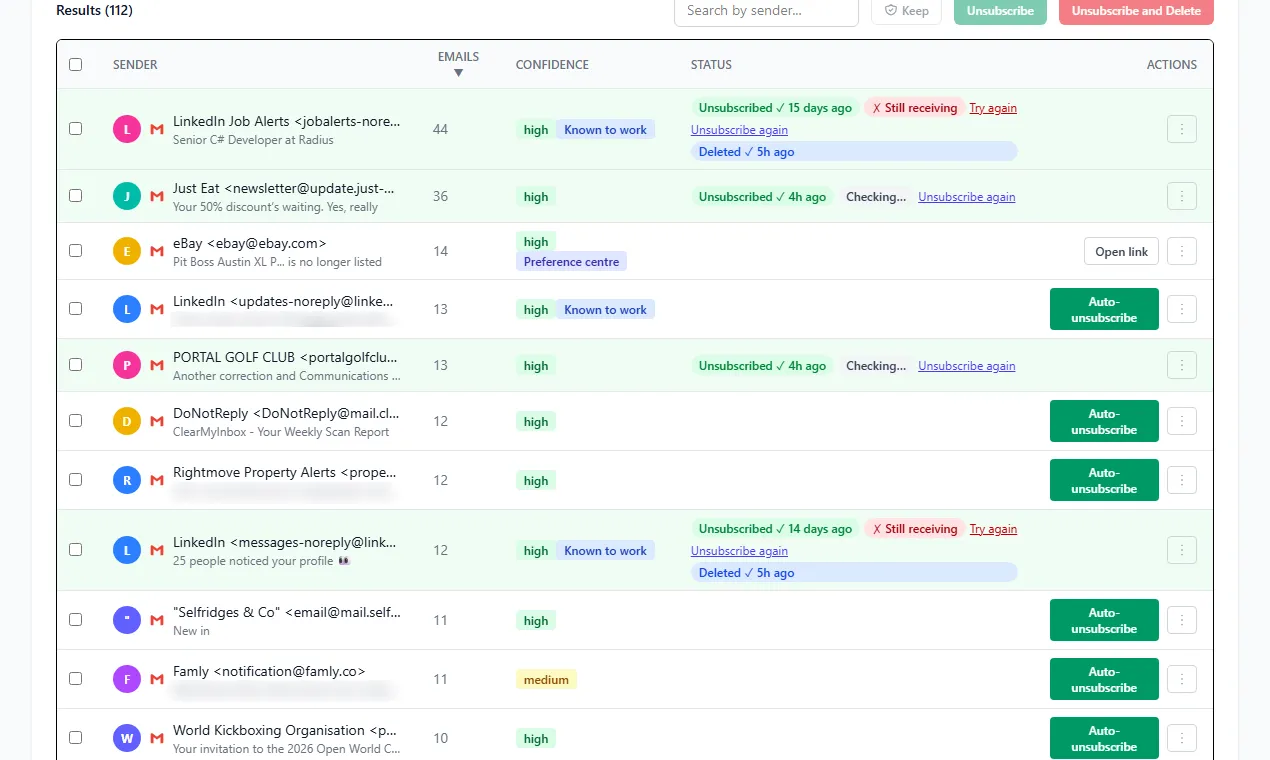
If most of your "junk" is actually newsletters you signed up for years ago, the junk filter doesn\'t solve it - they\'re technically legitimate. ClearMyInbox finds every newsletter and promotional sender in your Outlook account and unsubscribes from selected ones in batches. Free to start, no credit card. For the broader playbook covering unsubscribe, block, Sweep, and rules, see how to stop unwanted emails on Outlook.
Empty the Junk folder regularly
Junk auto-deletes after a configurable period. To set or change it:
- Settings → Mail → Junk email.
- Set Empty deleted items every X days (default 10 days, can be 30 or never).
If the rest of your mailbox needs the same treatment, see how to clean up your Outlook inbox.
Frequently asked questions
What does Outlook count as "junk"?▾
Junk in Outlook means messages flagged by Microsoft's spam filter or matched against your Blocked Senders list. The Junk folder also catches phishing, suspicious links, and bulk mail from low-reputation senders.
Why does Outlook keep marking real emails as junk?▾
Outlook's filter is conservative - if a message hits multiple spam-y signals (no unsubscribe header, image-heavy, suspicious URLs) it lands in Junk even if legitimate. Mark it as Not junk and add the sender to Safe Senders to prevent future false positives.
Does the Outlook junk filter learn from my reports?▾
Yes, but slowly. Reporting builds your personal filter and contributes to Microsoft's global one. The Focused Inbox feature learns your behavior faster - if you ignore a sender for a week, Focused starts hiding them.
How do I empty the Junk folder?▾
Right-click the Junk folder in the sidebar and choose Empty folder. Or set it to auto-empty: Settings → Mail → Junk email → Empty deleted items every X days.
Can I block all junk from a specific country?▾
Yes. Settings → Mail → Junk email → Filters. Toggle on "Block top-level domains" and select the country codes (e.g., .ru, .cn) you want auto-routed to Junk.