How to block spam emails on Gmail
To block spam emails on Gmail, open the message and click Report spam (the exclamation icon in the toolbar). For senders who keep coming back, also click the three-dot menu and choose Block sender. For domain-wide spammers, build a filter that auto-deletes everything from their domain.
Try ClearMyInbox free - bulk unsubscribe in one click, free to start.
Method 1: Report Spam (Gmail web)
Reporting trains Gmail's global filter, not just yours - so a single report helps every Gmail user. This should be your default for anything that looks like real spam.
- Click on the spam email to open it.
- Click the Report spam icon in the toolbar at the top - it looks like an exclamation mark inside a stop sign.
- The message moves to Spam. Gmail strips active links and images for safety.
Spam folder mail is auto-deleted after 30 days, so you don't need to clean it manually.
Method 2: Report Phishing
For email pretending to be from a real company (your bank, Amazon, etc.) trying to trick you into clicking a link or entering credentials, use Report Phishing instead. It has higher priority in Google's review queue.
- Open the message.
- Click the three-dot menu in the top-right of the message.
- Select Report phishing.
Method 3: Block the sender
For senders that aren't quite spam but you don't want anything from them again - persistent recruiters, ex-employees, that one mailing list that won't honor unsubscribes:
- Open any email from the sender.
- Click the three-dot menu in the message header.
- Select Block "[sender]".
- Confirm. Future mail from that exact address goes to Spam.
One catch: blocking only affects the exact email address. If a marketer sends from news@brand.com sometimes and updates@brand.com other times, you'd need to block each one - or use a filter (next method). Site notifications are a common borderline case here - Reddit's emails, for example, are better switched off in account settings than blocked. For the wider decision tree of when to unsubscribe, block, or filter, see how to stop unwanted emails on Gmail.
Method 4: filter the entire domain
For domain-wide spammers, a filter is more powerful than blocking:
- Click the search bar at the top of Gmail.
- Click the filter icon (sliders) on the right of the search bar.
- In From, enter
*@example.com(replaceexample.comwith the spammer's domain). - Click Create filter.
- Tick Delete it (or Skip the Inbox + Mark as read if you want to keep evidence).
- Tick Apply filter to matching conversations to retroactively delete existing messages.
- Click Create filter.
Mobile (iPhone or Android)
The Gmail app supports Report spam, Report phishing, and Block sender, but not filter creation. Use the web for filters.
- Open the email in the Gmail app.
- Tap the three-dot menu (top-right of the message).
- Tap Report spam, Report phishing, or Block [sender].
Don't click unsubscribe on actual spam
Real spammers use unsubscribe clicks to confirm your address is valid - then they sell or share it. For obvious spam, always Report spam, never click unsubscribe. The unsubscribe link is for legitimate marketing - see how to unsubscribe from emails on Gmail for that case.
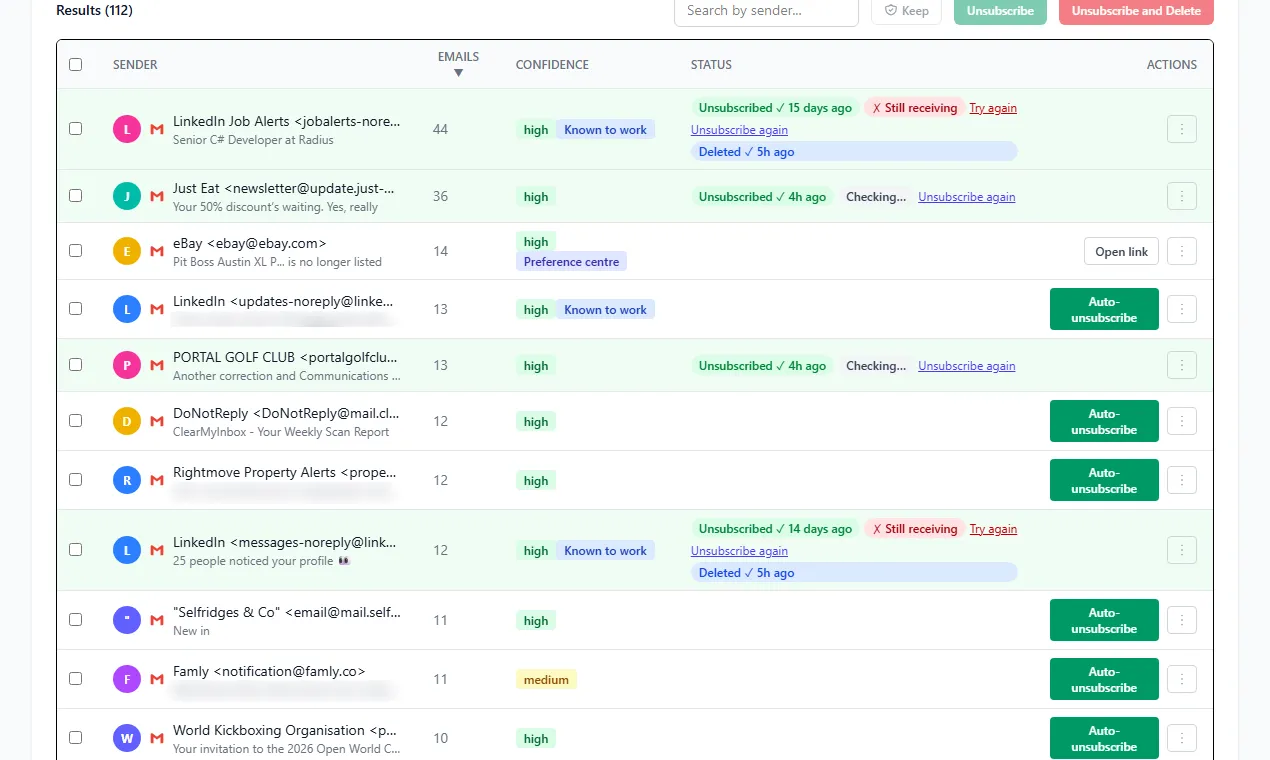
Spam keeps coming - what now?
- Each new sender - report and block. Yes, every time. The filter learns.
- Same domain, different addresses - build a domain filter (Method 4 above).
- Your address has been leaked - if spam volume is high and growing, your address may be on a leaked list. Consider using
+aliases for new sign-ups (e.g.name+amazon@gmail.com) so you can identify and filter the source.
Frequently asked questions
What's the difference between "Report spam" and "Block sender"?▾
Report spam tells Google's global filter that this is junk - it'll affect every Gmail user, not just yours. Block sender only routes future mail from that exact address to your spam folder. Use Report spam for actual spam; use Block for senders who are legit but unwanted (recruiters, ex-employees, etc).
Why does spam keep getting through Gmail's filter?▾
Gmail's filter is good but not perfect. Spammers rotate sending addresses and domains constantly. Each report you file makes the filter slightly better. Persistent spam usually needs a domain-wide filter or marking as spam every time it arrives.
Does blocking a sender stop them from emailing me at all?▾
No. Blocked mail still reaches your account - Gmail just routes it to Spam instead of Inbox. There's no way to refuse delivery entirely.
How do I see who I've blocked on Gmail?▾
Open Settings (gear icon) → See all settings → Filters and Blocked Addresses. The blocked list is at the bottom. You can unblock from there.
Can I block a whole domain on Gmail, not just one address?▾
Not via the block button, but you can with a filter. Search from:*@example.com, click the filter icon, then choose Delete it. Every email from that domain is auto-trashed.