How to delete multiple emails in Outlook
To delete multiple emails in Outlook, select the first message, hold Shift, select the last and press Delete. To clear a whole folder, use Empty folder in Outlook on the web or right-click it and choose Delete All in classic Outlook, and use Sweep to remove everything from one sender. Nothing frees storage until Deleted Items is emptied.
Try ClearMyInbox free - bulk unsubscribe in one click, free to start.
Delete a range of emails, or everything in a folder
The commands sit in different places in each Outlook, so start with the version you are looking at: classic Outlook is the desktop app with the ribbon and the File menu; the new Outlook for Windows looks like Outlook on the web.
In the new Outlook for Windows
Microsoft's shortcut list for the new Outlook extends a selection from the keyboard:
- Select the first message you want to remove.
- Press Shift+Down arrow to select the current and next message, and keep pressing it until the whole run is selected.
- Press Delete to delete the selected messages. They move to Deleted Items.
Microsoft's shortcut list does not give Ctrl+A for the message list in the new Outlook or on the web (its classic delete page does), and its new Outlook guide describes no Select all button in the message list, so the keyboard run above is the documented route.
For every message in a folder, Microsoft documents a right-click Empty on the new Outlook's Deleted Items folder only (see the storage section); the folder-level commands for the Inbox and other folders are written up for Outlook on the web, in the next section but one. One caution from the shortcut list: Shift+Delete permanently deletes the selected message or item, skipping Deleted Items, so only use it for mail you are certain about.
In classic Outlook for Windows
Microsoft's page on deleting all email in Outlook is written for the classic app (Outlook for Microsoft 365, 2024, 2021, 2019 and 2016), and it gives three ways to pick the messages:
- For a run of consecutive emails, select the first, hold Shift, select the last, then press Delete.
- For emails that are not next to each other, hold Ctrl and select each one, then press Delete.
- For every email in the folder you have open, press Ctrl+A, then press Delete.
To clear a folder without selecting anything, expand the Folder pane with the arrow at the top left, right-click the folder, select Delete All, and select Yes when Outlook asks to move everything to Deleted Items. There is no single command for every folder at once: Microsoft's answer to "delete all email in all folders" is to repeat Delete All on each folder.
In Outlook.com and Outlook on the web
In a browser, the selection controls are checkboxes rather than keys. Microsoft's Outlook.com steps:
- To delete some messages, select them in the message list, then select Delete above the reading pane.
- To delete every message in a folder, open the folder, tick the checkbox above the message list, then select Empty folder in the reading pane. The messages move to Deleted Items.
- If Focused Inbox is on, empty Focused and Other separately; each is its own list.
Two shorter routes from Microsoft's pages for Outlook on the web: hover over your Inbox in the folder list and select More (the three dots), then Empty; or right-click any folder and choose Empty (Microsoft's inbox guide, Web tab) or Delete all (its folders page), which moves all the items in that folder to Deleted Items.
How do I delete all emails from one sender in Outlook?
Sweep is the command for this, and Microsoft documents it for Outlook.com, Outlook on the web and the new Outlook for Windows. It works from one message, not from a selection:
- Select a message from the sender.
- Select Sweep from the ribbon.
- Choose when and where you want to move email messages from the sender you chose. The Outlook on the web page lists the choices as deleting all incoming email from that sender, keeping only the latest email, or deleting email older than 10 days.
- Select OK to perform the action.
The "when" choice is what keeps the inbox clear: a one-time sweep clears what has arrived, and the all-future-messages option becomes a Sweep rule that handles the sender's later mail too. Microsoft notes that Sweep rules run once per day, unlike inbox rules, which run as soon as email arrives, and that Sweep is not available from the Junk Email, Drafts, Sent Items or Deleted Items folders. Classic Outlook has no Sweep on Microsoft's delete page; there, Ctrl-select the sender's messages and press Delete.
How do I delete multiple emails in the Outlook app on iPhone or Android?
The Outlook mobile app has a select mode, and Microsoft's steps are the same on iOS and Android:
- From the inbox, long press a message, or tap the circle icon on it, to select it.
- Tap the other messages you want to include.
- Tap Delete (the trash can icon), or tap the overflow menu (three dots) for Select All, Move, Mark Read or Unread, and Flag or Unflag.
- To cancel without deleting, tap the back arrow at the top left.
Deleted messages go to the Deleted folder, or to Trash for some accounts such as Gmail. To delete them permanently on the phone, Microsoft's page says to expand the folder pane, open the Deleted folder and delete them again, one or several at a time.
Does deleting emails free up storage in Outlook?
Not on its own. Every route above moves mail to Deleted Items, and Microsoft's storage pages are blunt about it: the Deleted Items folder counts against your mailbox storage quota until it is emptied. For Outlook.com, Microsoft adds that items are deleted from the folder automatically after 30 days, and that mail removed with Sweep does not reduce your quota until it has also gone from Deleted Items. Emptying the folder is the step that gives the space back:
- New Outlook: right-click Deleted Items in the folder list and select Empty. To do it on every exit, open View, View settings, Mail, Message handling and turn on the option to empty the folder when closing Outlook.
- Classic Outlook: right-click Deleted Items, select Empty Folder, then Yes. To automate it, go to File, Options, Advanced and, under Outlook start and exit, tick the option to empty Deleted Items folders when exiting Outlook.
- Outlook.com and Outlook on the web: open Deleted Items and select Empty folder above the message list, or hover over the folder and select More, then Empty. To empty it at every sign-out, go to Settings, Mail, Message handling, tick Empty my deleted items folder and select Save.
Microsoft gives a free Outlook.com account 15 GB of mail storage, a Microsoft 365 subscriber 100 GB, and work or school mailboxes up to 100 GB unless an administrator sets less; over quota, you can neither send nor receive. The quickest view of where the space went is Settings, Account, Storage in Outlook on the web (Settings, Accounts, Storage in the new Outlook): it shows the space each folder uses and offers to permanently delete a folder's items, or only those older than 3, 6 or 12 months.
Deleting is not unsubscribing
Deleting a thousand newsletters removes a thousand newsletters; it tells no sender anything. Each list you are on keeps sending, the next batch lands in the same inbox, and a Sweep rule that deletes it on arrival only hides the fact that you are still subscribed. Microsoft's own Outlook.com delete page ends with the unsubscribe step for this reason: open a newsletter or promotional email and select Unsubscribe at the top of the reading pane. Our guide to unsubscribing from emails on Outlook shows where that control is in each version and what to do when it is missing, and bulk unsubscribe in Outlook covers clearing many senders at once. Once the mail has stopped, the order of a longer tidy, Sweep, archive and rules, is in how to clean up your Outlook inbox.
What ClearMyInbox does for an Outlook mailbox
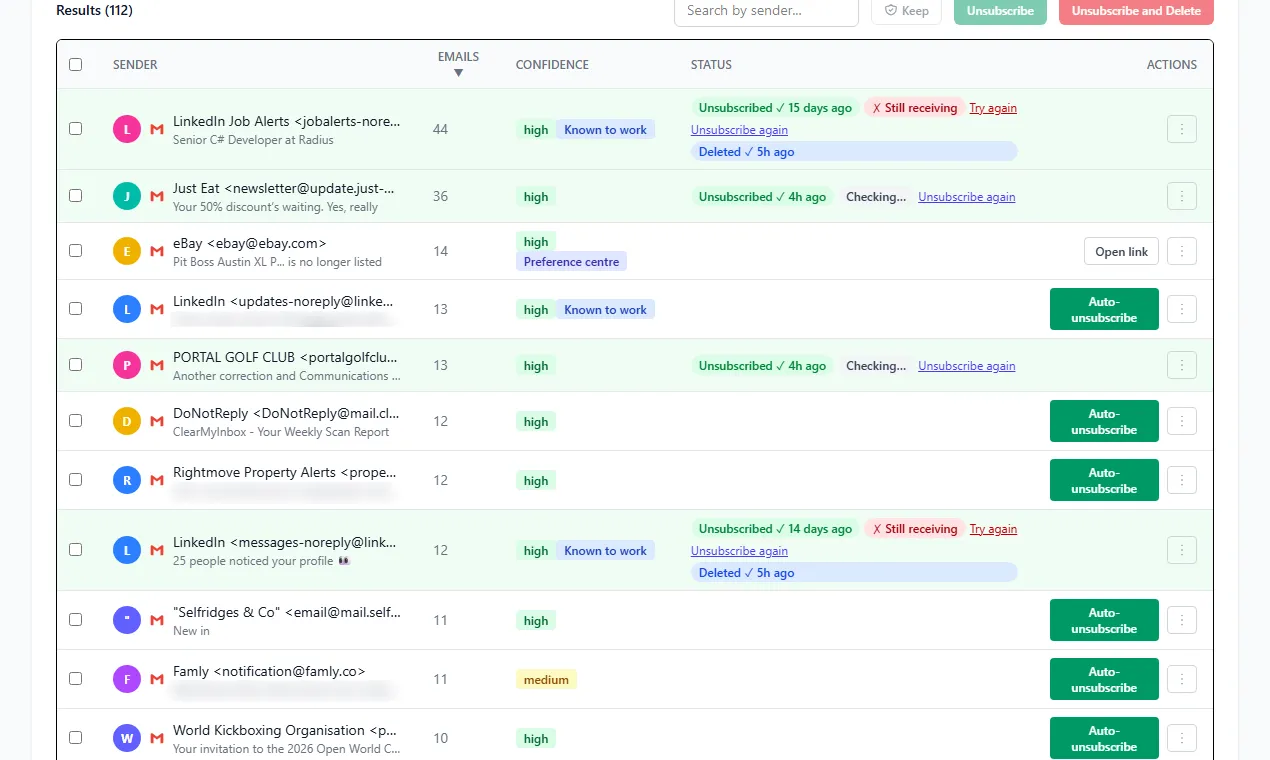
ClearMyInbox works with Outlook accounts through your Microsoft sign-in. It scans the mailbox for every sender with an unsubscribe link, lists them with how many emails each one sent, and unsubscribes from the ones you pick in one go. It then re-checks each sender and labels it Confirmed stopped or flags it as still emailing, so the senders that ignored the request are the ones you add to Outlook's blocked list or Sweep. The Free plan includes 10 automatic unsubscribes a month; blocking, scheduled scans and AI spam scoring come with the Casual plan. You can disconnect it from your Microsoft account at any time.
Questions about deleting emails in Outlook
Can I get back emails I deleted by mistake?
Usually, for a while. Anything still in Deleted Items can be moved back. For Outlook.com and Outlook on the web, Microsoft says email is deleted from Deleted Items automatically after 30 days, and that items removed from the folder stay recoverable for 30 days: open Deleted Items, select Recover next to "Recover items deleted from this folder", select the items and choose Restore. The new Outlook has the same Recover button. In classic Outlook the command is Recover Deleted Items From Server on the Home tab, and how long items stay recoverable there is set by an administrator's policy.
Why is Outlook so slow to delete thousands of emails, or putting them back?
Microsoft's Outlook.com page, in its steps for emptying the Deleted Items folder, warns that a large deletion can take a while and that the browser window should stay open while it runs. If the deletion fails, it suggests a smaller batch, and if deleted email reappears, that you may have deleted a lot recently and should try again later. Using the folder's own command (Empty, Delete All or Empty folder) also avoids selecting thousands of rows by hand.
How do I delete old emails in Outlook by date?
Two routes, both above: the Storage page's 3, 6 or 12 month option for a whole folder, and Sweep's 10-day option for one sender. The difference is where the mail goes. The Storage route deletes permanently; Sweep goes through Deleted Items, so check that folder before you empty it.