How to unsubscribe from emails on iPhone
To unsubscribe from emails on iPhone, use the route your mailbox documents: an iCloud Mail address leaves many senders with iCloud Mail Cleanup in Settings, the Gmail app has Unsubscribe next to the sender's name, and Mail on a Mac shows an Unsubscribe banner on mailing-list messages. Otherwise the sender's footer link does it. Blocking does not unsubscribe you.
Try ClearMyInbox free - bulk unsubscribe in one click, free to start.
Unsubscribe from a mailing list in Mail: the banner Apple documents on the Mac
Apple documents a mailing-list banner in Mail, and the page that documents it is in the Mail User Guide for Mail 16 on macOS 15:
- Select a message you received from a mailing list. A banner below the message header indicates that it is from a mailing list.
- In the banner, click Unsubscribe, then click OK in the alert that appears.
Apple says the banner disappears as Mail unsubscribes you, and that to receive the list's emails again you must resubscribe directly with the sender. Apple's iPhone User Guide has no page for it as of 14 November 2026, so those Mac steps are the only ones Apple publishes, and this page gives no iPhone taps for it. When a message carries no banner, the sender's own unsubscribe link in the footer of the message is the route.
Unsubscribe from many senders at once with iCloud Mail Cleanup
For an iCloud Mail address, Apple documents a bulk unsubscribe on the iPhone itself. iCloud Mail Cleanup recommends senders in the Updates and Promotions categories to unsubscribe from in bulk, and moves their future messages to the Trash automatically:
- Open the Settings app, tap your name, then tap iCloud.
- Below Saved to iCloud, tap Mail, tap iCloud Mail Cleanup, then turn on Use iCloud Mail Cleanup. Apple says your inbox is not affected until you turn on a recommendation.
- Tap Get Recommendations under Unsubscribe Recommendations.
- Select each sender you want to unsubscribe from, then tap Unsubscribe.
Apple notes that if no recommendations show, iCloud Mail Cleanup has none at the moment; they appear once enough Updates and Promotions mail has arrived. The senders you choose go onto an Unsubscribed list, which you can edit from the same screen: tap Unsubscribed, tap Edit, then the delete button next to a sender to take them off it. Turning iCloud Mail Cleanup off deletes that list and stops deleting the senders' messages. The same page offers cleanup recommendations for old mail, such as Clean Up Promotions, with rules for the action, whether it applies to read or unread mail, and how old the mail must be. On iCloud.com, Apple also documents a single-sender route: select an email in the Updates or Promotions category, select the more actions button in the bottom right, select Unsubscribe, then select it again. None of this applies to a Gmail, Outlook or Yahoo account that Mail is showing you; it is a feature of iCloud Mail.
Unsubscribe from emails in the Gmail app on iPhone
If your Gmail is in Google's own app, Google documents an Unsubscribe next to the sender's name:
- Open the Gmail app and open an email you want to unsubscribe from.
- Next to the sender's name, tap Unsubscribe.
- In the pop-up, tap Unsubscribe, or Go to website if the sender requires you to finish on its site.
Google says it may take a few days for the mail to stop, and that one email's Unsubscribe may cover only a single list from that sender. Its subscriptions page covers them all: at the top left tap Menu, then Manage subscriptions, and tap Unsubscribe next to a sender to leave every active list related to them. New emails from that sender then go to the spam folder with a banner explaining why. Google marks the feature as gradually rolling out, so it may not be in your app yet. The web steps are in how to unsubscribe from emails on Gmail.
Unsubscribe in the Outlook and Yahoo Mail apps on iPhone
Microsoft's help pages document Unsubscribe for Outlook on the web and the new Outlook, not for the Outlook app on iPhone, so we give no taps for it; the documented controls are in how to unsubscribe from emails on Outlook, and they act on the account, so a list left on the web stops on the phone too. Yahoo documents its app: open the message, tap the More icon, tap Unsubscribe, or open the Unsubscribe view tab and clear lists from there. The detail is in how to unsubscribe from emails on Yahoo.
Blocking a sender on iPhone does not unsubscribe you
Apple's block sends a sender's mail to the trash folder on all your Apple devices; Google says the same of its block, which sends future mail to Spam, and adds that blocking does not automatically unsubscribe you from the mailing list. In both cases the sender keeps writing and keeps you on its list, and a new sending address lands back in the inbox. Block the senders who ignore an unsubscribe, not the ones you have not asked yet; the steps are in how to block emails on iPhone.
How to unsubscribe from emails on iPad and on a Mac
On an iPad, Mail works as on the iPhone: Apple's iPad guide also has no page for the banner, and Apple's iCloud guide says iCloud Mail Cleanup can be turned on from the iPad as well, under the same iCloud Mail settings. Google's Gmail steps above are written for iPhone and iPad together. On a Mac, Apple's steps are the ones at the top of this page: select the mailing-list message, click Unsubscribe in the banner below the header, then OK. Apple's current Mail guide for macOS 26 and 27 no longer carries that page, so if your Mac's Mail shows no banner for a list, use the sender's footer link.
ClearMyInbox for a Gmail or Outlook account read on the iPhone
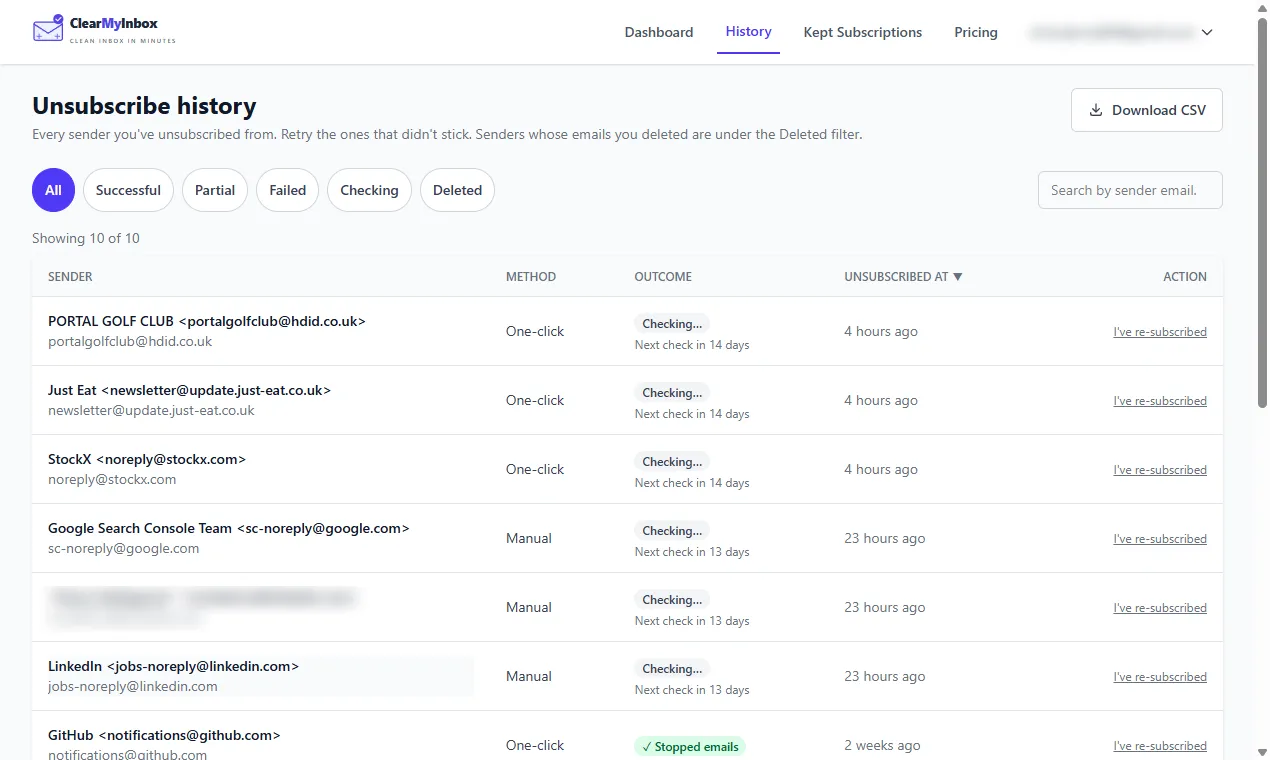
ClearMyInbox takes the list approach for a Gmail or Outlook mailbox. You sign in with the Google or Microsoft account, a scan finds each sender whose messages carry an unsubscribe link, and you choose which of them to leave in a single pass. After that, every chosen sender is re-checked: a quiet one earns the label Confirmed stopped, a noisy one is flagged, and the flagged addresses are the ones worth blocking on the phone. Ten automatic unsubscribes a month are free; the Casual plan adds scheduled scans, blocking and AI spam scoring; you can disconnect at any time. Product questions live in the help centre.
Questions about unsubscribing on iPhone
Is there a way to unsubscribe from a bunch of emails at once on iPhone?
Only for an iCloud Mail address, through iCloud Mail Cleanup's Unsubscribe Recommendations, which Apple describes as unsubscribing in bulk; on iCloud.com the same screen ends with a button Apple labels Unsubscribe from [X] Senders, and Apple says you may see recommendations after enough Promotions and Updates mail has arrived. Google's Manage subscriptions takes one sender per tap, every list of that sender included.
Why is there no Unsubscribe banner on an email in Mail?
Apple's banner appears when a message is from a mailing list; a sender that does not send its mail that way gets no banner, and the sender's own link in the footer of the message is the route. In the Gmail app the equivalent control is the Unsubscribe next to the sender's name, and Google says some senders require you to go to their website, so its pop-up offers Go to website in place of a one-tap Unsubscribe.
How do I unsubscribe from Apple's own emails?
Apple's support page gives two routes for its own marketing mail: click unsubscribe in the footer of the email, or sign in at account.apple.com, go to Privacy, select Messages from Apple, and tick only the emails you want to receive. That is the Apple Account page, not a Mail setting, so it applies whichever device or mailbox the mail arrives in.
Can I undo an unsubscribe on iPhone?
Not from Mail. Apple says that to receive the list's emails again you must resubscribe directly with the sender. For iCloud Mail Cleanup, removing the sender from the Unsubscribed list stops their future mail going to Trash, and Apple says you then sign up for their updates again through their website.