How to block emails on iPhone
To block emails on iPhone in the Mail app, open a message from the sender, tap their email address, tap View Contact Card, then tap Block this Contact. Mail from that address then goes to the trash folder, on every Apple device signed in to your account. It blocks one address; a sender using another gets through.
Try ClearMyInbox free - bulk unsubscribe in one click, free to start.
Block a sender in the Mail app on iPhone
Apple's iPhone User Guide puts the block on the sender's contact card, not in the message menu:
- Open the Mail app on your iPhone.
- Tap a message from the sender you want to block.
- Tap their email address at the top of the message, then tap View Contact Card.
- Tap Block this Contact.
Apple's support article adds two things worth knowing before you tap. When you block an email address from Mail, its email goes to the trash folder, so it is not deleted outright and you can still find it there. And email blocking works across all your Apple devices, so the same sender is blocked on your iPad and Mac without repeating the steps.
How do I unblock someone or see who I have blocked on iPhone?
The list lives in Settings, not in Mail. Apple's current steps, for iOS 26:
- Open the Settings app.
- Tap Privacy & Security.
- Tap Blocked Contacts.
- Tap Edit, then tap the delete button next to the contact you want to unblock.
- Tap Unblock.
Apple's one article gives a single Blocked Contacts list in Settings for Phone, FaceTime, Messages and Mail; a sender blocked from Mail appears in it.
Block emails on iPhone in the Gmail app
If you read Gmail in Google's own app rather than in Mail, the block is in the message, and it is a Gmail block: it lives in your Google account's settings and applies on the web and on a computer as well. Google's steps for iPhone and iPad:
- Open the Gmail app and open a message from the sender.
- At the top right, next to Reply, tap More.
- Tap Block "sender".
After you block a sender in Gmail, all future emails from them go to Spam. Our guide to blocking an email address in Gmail covers the desktop side, the blocked list and filters for whole domains.
Block emails on iPhone in the Outlook app
Microsoft documents the mobile block behind the junk report, for both iPhone and Android:
- Select the email you want to report.
- Tap the three dots at the top right of the screen.
- Select Report Junk.
- Select Block Sender.
The desktop, web and domain options are in how to block emails on Outlook. The reason to use the provider's app for a Gmail or Outlook address is scope: Apple documents its block for your Apple devices and says nothing about it applying inside Gmail or Outlook themselves, whereas a block set in Gmail or Outlook lives in that account's own settings. For those mailboxes, set it there as well.
Block emails with certain words, or from a whole domain, on iPhone
The Mail app's own filter button does not block anything: Apple's guide describes it as a way to show messages that meet criteria you choose, and it changes the view, not what arrives. For an iCloud Mail address, Apple documents rules instead, set up on the iPhone itself, and a rule can act on a sender or a domain where the block button cannot:
- Open the Settings app, tap your name, then tap iCloud.
- Below Saved to iCloud, tap Mail, tap iCloud Mail Rules, then tap Add Rule.
- Enter a name for the rule.
- Use the pop-up menu next to Message and the text field to say which emails the rule catches.
- Use the pop-up menu next to Action to say what happens to them, then save.
Apple says rules can move, delete, forward or mark emails as read, that a new or changed rule can take up to 15 minutes to apply to incoming mail, and that the same rules can be managed at iCloud.com under Mail settings, Rules, with up to 500 of them. Rules exist only for an iCloud Mail address: a Gmail or Outlook account in the Mail app keeps its own filters and rules, which you set in Gmail or Outlook.
Unsubscribe on iPhone before you block
For a newsletter, a shop's offers or an app's notifications, blocking is the wrong tool: a block does not unsubscribe you, so the sender keeps writing, Mail keeps moving each message to Trash, and a new sending address lands straight back in the inbox. Unsubscribing asks the sender to stop, which is the only thing that actually stops the mail. The mechanics are the same whichever mailbox the iPhone is reading, so our guide on how to unsubscribe from emails explains what the link does and why it sometimes fails, and the rest of our inbox cleanup guides cover the other mailboxes. Keep the block for people and companies you never agreed to hear from.
What ClearMyInbox does when a sender ignores unsubscribe
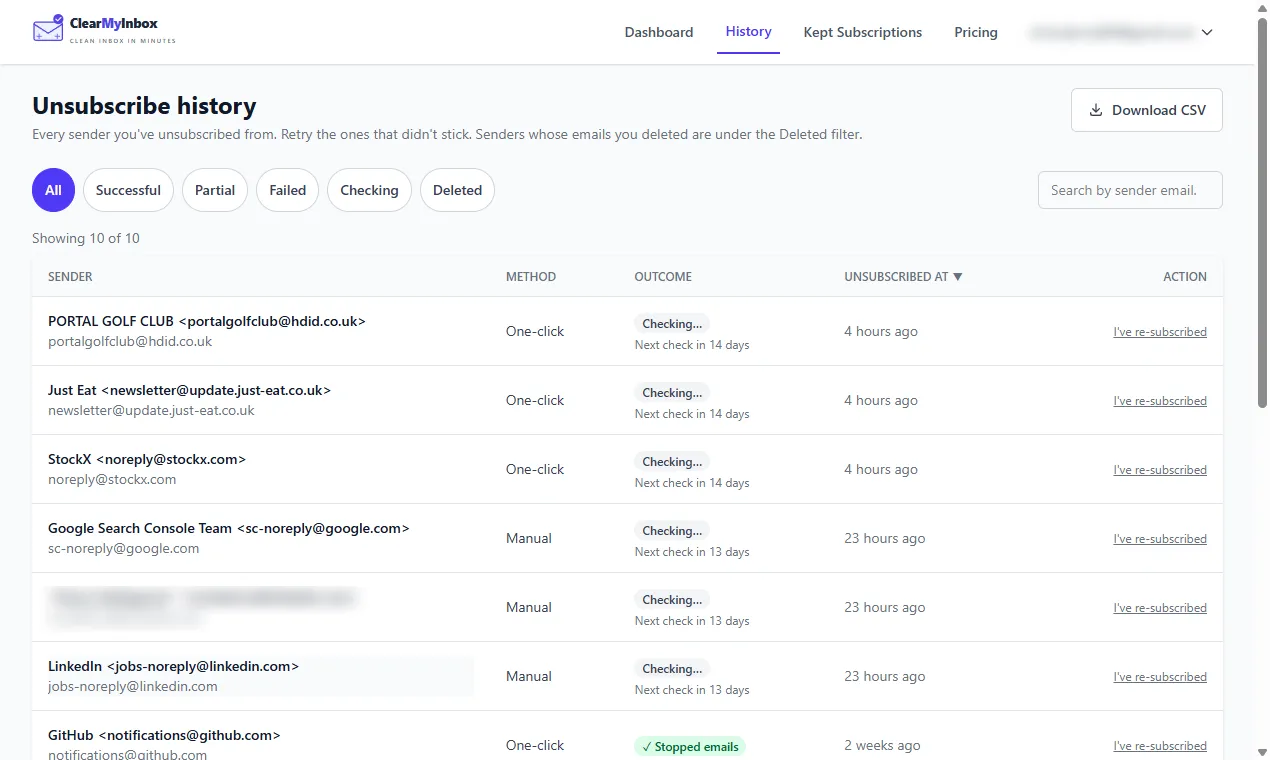
ClearMyInbox is a bulk unsubscribe tool. It scans a mailbox for every sender with an unsubscribe link, unsubscribes from the senders you pick in one go, then re-checks each one and labels it Confirmed stopped or flags it as still emailing. The flagged senders are the ones that ignored a proper request, and those are the addresses worth blocking on your iPhone, instead of blocking everything and wondering why the inbox is still full.
Questions about blocking emails on iPhone
How do I block emails in the Yahoo Mail app on iPhone?
Yahoo's help centre documents blocking a single address from the desktop browser only; the app editions of its article repeat the desktop steps, so for one address use a computer. What the Yahoo Mail app does document is blocking a whole domain, which needs Yahoo Mail Plus: Profile icon, Settings, then Block unwanted sender domains. The steps, the 1,000-address list and the filters that work on a free account are in how to block emails on Yahoo Mail.
Does blocking delete the emails on my iPhone?
Apple says email from a blocked address goes to the trash folder, so new messages are out of the inbox but recoverable until Trash is emptied. The article says nothing about messages that arrived before the block, so delete those by hand if you want them gone.
Why am I still getting emails from a blocked sender on iPhone?
Three usual causes. The sender is writing from a different address, and the block matched only the old one. You are reading the mailbox somewhere other than an Apple device, the scope point from the Outlook app section above, so set the provider's own block as well. Or the message is a mailing you subscribed to, and the sender has simply moved lists. Check the address on the new message against Blocked Contacts, add the new one, and unsubscribe from anything you once signed up to.
How do I filter emails on my iPhone?
Tap the filter button in a mailbox list, then tap Filtered by and choose the criteria to show; tap it again to turn the filter off. That is a view, useful for finding things, and it does not stop or move any mail. To act on incoming mail automatically, use an iCloud Mail rule as above, or the filters of the provider whose account it is.