How to delete all emails on iPhone
To delete all emails on iPhone, open the Mail app, tap the More button at the top right, tap Select, then Select All and the Trash button. Select All only appears in List View, so if your inbox shows categories, tap More and choose List View first. The mail then sits in Trash until it is removed.
Try ClearMyInbox free - bulk unsubscribe in one click, free to start.
Delete all emails in the Mail app on iPhone
Apple's support article on deleting emails on iPhone and iPad gives the selection route and the one condition for Select All:
- Open Mail and go to your Inbox.
- Tap the More button in the upper right corner, then tap Select.
- Select the emails you want to delete. To select many quickly, swipe down through the checkboxes.
- Tap the Trash button, or the Archive button. If you only see Archive, touch and hold it to see other options such as Trash Selected Messages.
Apple's note under those steps is the answer most people are after: to choose Select All when you select emails, use List View. Tap the More button, then tap List View. Apple adds that to delete a large number of emails you might find it easier to use your email provider's website, which for a Gmail or Outlook account means the web versions in our guides to deleting all promotional emails in Gmail and deleting multiple emails in Outlook. Apple's iPhone User Guide for iOS 27 describes the same selection without the More button, Select then checkboxes then the Delete button at the bottom of the list, and says that to turn off the confirmation you go to Settings, Apps, Mail and turn off Ask Before Deleting.
How do you select all emails on an iPhone?
Since iOS 18.2, Apple says, Mail sorts incoming email into four categories: Primary for urgent mail and recent messages from contacts, Transactions for receipts and order updates, Updates for news and social media, and Promotions for mail from businesses. In that layout there is no Select All, and Apple's iPhone guide explains why: when you select a Transactions, Updates or Promotions message, you are selecting all the messages in that category from the sender, not a single email. Two ways out of categories, both from Apple's pages:
- Tap the More button and choose List View to switch the layout; Select All is then offered when you tap Select.
- Swipe left on the categories at the top of the inbox to open All Mail, which shows every email at once without changing the layout.
Apple's current guide words the toggle as tapping More, then Show Categories, to turn the view off or on. Either way, Select All lives in the list layout.
Delete all emails from one sender on iPhone
The categories view is better at this than List View. Apple's support article gives the steps for iOS 18.2 and later:
- In the Mail app, tap a message from the sender you want to clear. All of your messages in that category from the sender appear in a message list, which Apple calls the digest view.
- Tap the More button.
- Tap Trash All.
Apple's categories guide adds the limits: Primary messages are not grouped by sender, so this works for Transactions, Updates and Promotions mail; to see every message from the sender across categories, tap the action menu at the top of the digest view and choose Show All Messages; and if you want single messages when scrolling, tap More in the inbox and deselect Group by Sender. You can also swipe left on one email in the digest to delete just that one.
Delete all emails in the Gmail, Outlook or Yahoo Mail app on iPhone
If you read your mail in the provider's own app, the controls belong to that app. Google's steps for the Gmail app on iPhone:
- Touch and hold a message.
- At the top left, tap the box next to Select all. Google says Gmail selects up to 50 messages; to add the next 50, scroll to the top and tap the box again.
- At the top, tap Delete.
Google suggests a search operator first for a targeted clear-out, such as from: an address or before: a date, and documents Empty trash now under Menu, Trash, with 30 days before Trash deletes a message itself. In the Outlook app, Microsoft's page says to long press a message or tap its circle icon, tap the others, then tap Delete, with Select All under the three-dot overflow icon; the rest is in how to delete multiple emails in Outlook. The Yahoo Mail app's bulk command is per sender: long press an email, tap Delete all messages from this sender, tap Delete all, up to 10,000 at a time, covered in how to mass delete emails in Yahoo Mail.
Why are deleted emails still showing up on my iPhone, or not deleting?
Two settings explain most cases, and Apple documents both. First, the account may archive rather than delete: Apple says that depending on the type of email account you might see Archive instead of Trash, and the choice is in the Settings app under Apps, Mail, Mail Accounts, your account, Account Settings, Advanced, then Move Discarded Messages Into, where you pick Deleted Mailbox or Archive Mailbox; for an iCloud account the same choice is under Mailbox Behaviors. Second, deleted mail stays in Trash for as long as the account allows: on the same screen, tap Remove and select a time interval, and Apple notes that some services override it, so iCloud keeps deleted messages no longer than 30 days even if you select Never. To see what is still sitting in the trash of every account at once, Apple's guide says to tap Edit in Mailboxes and select the All Trash mailbox.
Delete all emails on iPad and on a Mac
Apple's iPad guide mirrors the iPhone: tap Select while viewing a message list, tick the checkboxes, then tap the Delete button at the bottom of the list, with the same note that selecting a Transactions, Updates or Promotions message selects all of that sender's messages in the category, and the same List View switch under More. To recover on iPad, tap the Sidebar button, expand the account, tap Trash, tap the message, tap the Move button and choose a mailbox. On a Mac, Apple's Mail guide is shorter and more powerful: select messages or conversations in the list and press the Delete key, or search first and delete the results, for example by entering date:8/01/21-9/05/21 in the search field for a date range, or a person's name for one sender. To remove them for good, choose Mailbox, then Erase Deleted Items, and pick an account; in Mail settings, under Accounts, Mailbox Behaviors, the Erase deleted messages menu sets when Trash empties itself. Apple's Mac page also suggests View, Sort By, Size to find the large messages when the account is near its provider's storage limit.
Deleting is not unsubscribing
Trash All clears what a sender has already sent; it tells the sender nothing, and the next campaign lands in the same inbox. iCloud Mail Cleanup's unsubscribe recommendations, the Gmail app's Unsubscribe and the mailing-list banner Apple documents in Mail on the Mac are the controls that reach the list, and our iPhone guide, unsubscribing from emails on iPhone, has them. Unsubscribe first, then delete the backlog, and the empty inbox stays empty. On the web the same controls are described on how to unsubscribe from emails on Gmail and, for Outlook, how to unsubscribe from emails on Outlook.
Stop the refill: ClearMyInbox on a Gmail or Outlook mailbox
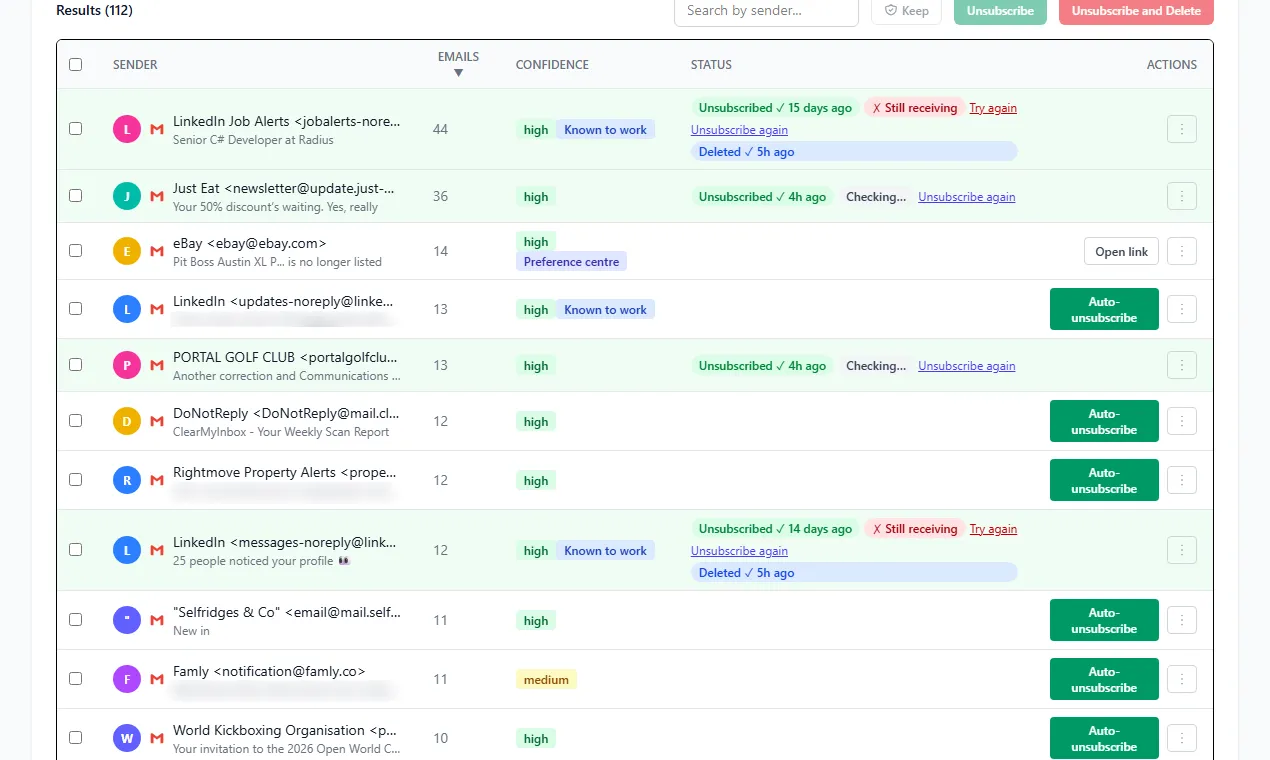
ClearMyInbox covers the other half of the job for a Gmail or Outlook mailbox. Connect it with your Google or Microsoft sign-in and a scan turns up every sender whose mail includes an unsubscribe link, with a count of what each has sent; tick the senders you are done with and one action unsubscribes from all of them. It then watches each one, marking it Confirmed stopped when the mail ends or flagging it when the mail continues, which tells you exactly which addresses deserve a block on the iPhone. Free includes 10 automatic unsubscribes a month, Casual unlocks blocking, AI spam scoring and scheduled scans, and disconnecting the mailbox is always available; product questions are in the help centre.
Questions about deleting emails on iPhone
Can I recover emails I deleted on my iPhone?
While they are in Trash, yes. Apple's guide: tap the Mailboxes button until you see Mailboxes, tap Trash, tap the message, tap the Mailbox button and choose another mailbox. How long they stay is the Remove setting above, and for iCloud no more than 30 days. Mail that was archived instead is in the Archive mailbox, not Trash.
How do I delete emails older than a year on iPhone?
Mail on iPhone has no date selection in Apple's pages, so the documented routes are elsewhere. For an iCloud Mail address, iCloud Mail Cleanup in Settings offers recommendations such as Clean Up Promotions with a rule for how old the mail must be, which Apple says you can edit before turning it on. In the Gmail app, Google's search operators do it: before: a date, then Select all and Delete. On a Mac, the date search in the section above selects any range for any account.
Does deleting emails on my iPhone free up storage?
Only once Trash is emptied, and the space that comes back is the mail account's, not the phone's. Apple's Mac guide puts it directly: messages you recently deleted are in the Trash mailbox but have not yet been removed from the mail server until you erase deleted items. On the iPhone, the Remove interval decides when that happens; in the Gmail app, Empty trash now does it at once.