How to turn off Microsoft Teams email notifications
To turn off Teams email notifications, open Settings and more (next to your profile picture), then Settings, then Notifications and activity, and under Missed activity emails pick how often you want the summary, or turn it off. Microsoft sends one an hour by default; the chat, channel and banner switches are separate settings on the same page.
Try ClearMyInbox free - bulk unsubscribe in one click, free to start.
What the Teams emails are
The emails most people want to stop are the missed activity summaries. Microsoft's help article "Change how often you receive missed activity emails in Microsoft Teams" describes them in one paragraph: "Missed activity emails make it easy to catch up on what you've missed when you've been away from Teams. You can choose how often you'd like to receive missed activity emails in Outlook. By default, you'll receive a missed activity email once every hour." So a quiet Teams account still produces up to one email an hour while there is activity you have not seen, and the fix is a frequency setting rather than an unsubscribe link.
The longer article "Manage notifications in Microsoft Teams" puts the same control under the heading "Manage activity emails" and says what it can do: "Set the frequency of summary emails that detail your missed activity or turn them off altogether." Both articles were read on 14 November 2026 on support.microsoft.com.
Turn off missed activity emails in Teams
Microsoft's steps, from the two articles above:
- In Teams, select Settings and more (the article places it at the top-right corner, next to your profile picture), then Settings.
- Go to Notifications and activity.
- Under Missed activity emails, choose from the dropdown menu how often you want "an email summarizing your missed activity in Teams", or the option that turns them off.
The articles do not list the dropdown's values, so look at the menu itself rather than expecting a particular label. If you use Teams with more than one account, a work account and a personal one for instance, repeat the three steps while signed in to each.
Chats and channels: where each notification goes
The email summary is one setting. The alerts that feed it are controlled on the same page, under Chats and channels. Microsoft's instruction: "In Settings, go to Notifications and activity > Chats and channels. Next to each notification type, select the dropdown menu to choose where you want the notifications to appear or select Off to turn that notification type off." The General section above it holds the display options, including "Mute all notifications (except for calls and meetings)", which the article marks as available on Windows only, and the sound and preview toggles.
For threads, the channel article adds an account-wide control: from Settings, then Notifications and activity, "you can turn on or off notifications for replies to followed threads and posts or show them in the Activity feed and banner, or only the Activity feed".
Change notifications for one channel
From "Manage channel notifications in Microsoft Teams":
- To the right of the channel name, select More channel options.
- Select Manage notifications.
- Turn notifications for all new messages or posts on or off (the label depends on the channel layout), and choose whether they show in the Activity feed and banner, or only the Activity feed.
Channels in the Threads layout have two more choices: "Include thread replies if you want to be notified when other people reply to a post or message", and "Follow all new threads if you want to see new replies in Followed threads at the top of your list of chats and channels", which the article says "won't notify you in the Activity feed".
Is there a switch for a whole team?
Not one Microsoft documents. The notification articles describe two levels: the account-wide dropdowns under Chats and channels, and the per-channel Manage notifications menu. Neither describes a setting that silences every channel of one team at once. If one team is the problem, work through its channels one by one, or use the account-wide dropdowns and accept that they cover every team.
Teams email notifications on your phone
Microsoft's mobile instruction is short: "To customize your notifications, tap your profile picture at the top left of the mobile app, then select Notifications." The Missed activity emails dropdown is described in the two articles under the Settings and more, Settings, Notifications and activity path, and neither article says whether the phone's Notifications screen shows it. If yours does not, open Teams on a computer, or at teams.microsoft.com in a browser, and change it there. Troubleshooting for mobile alerts has its own article, "Troubleshoot notifications for Teams mobile apps", linked from the same page.
What the setting does not cover
The three Microsoft articles this guide is built on cover the missed activity summary, the chat and channel alerts, the Activity feed and the mobile Notifications screen. They say nothing about meeting invitations, which are calendar mail, or about messages your organisation's administrators send, so do not expect the Missed activity emails dropdown to change those. If an email from Microsoft is not a missed activity summary, it was not sent by this setting and needs its own route.
When Teams emails keep coming
- Check the account. Look at the address the summary was sent to; if you use more than one Teams account, repeat the steps in each.
- Check what the email is. A summary of missed activity is this setting. A meeting invitation or a message from your organisation is not.
- Prefer a filter to a block. If a summary still arrives after the change, a mailbox rule that files it is safer than a block, because the sender is Microsoft and a block could catch other Microsoft mail. Our guides to blocking an email address in Gmail and blocking emails on Outlook show the provider's own steps for both.
What ClearMyInbox does with the rest of your inbox
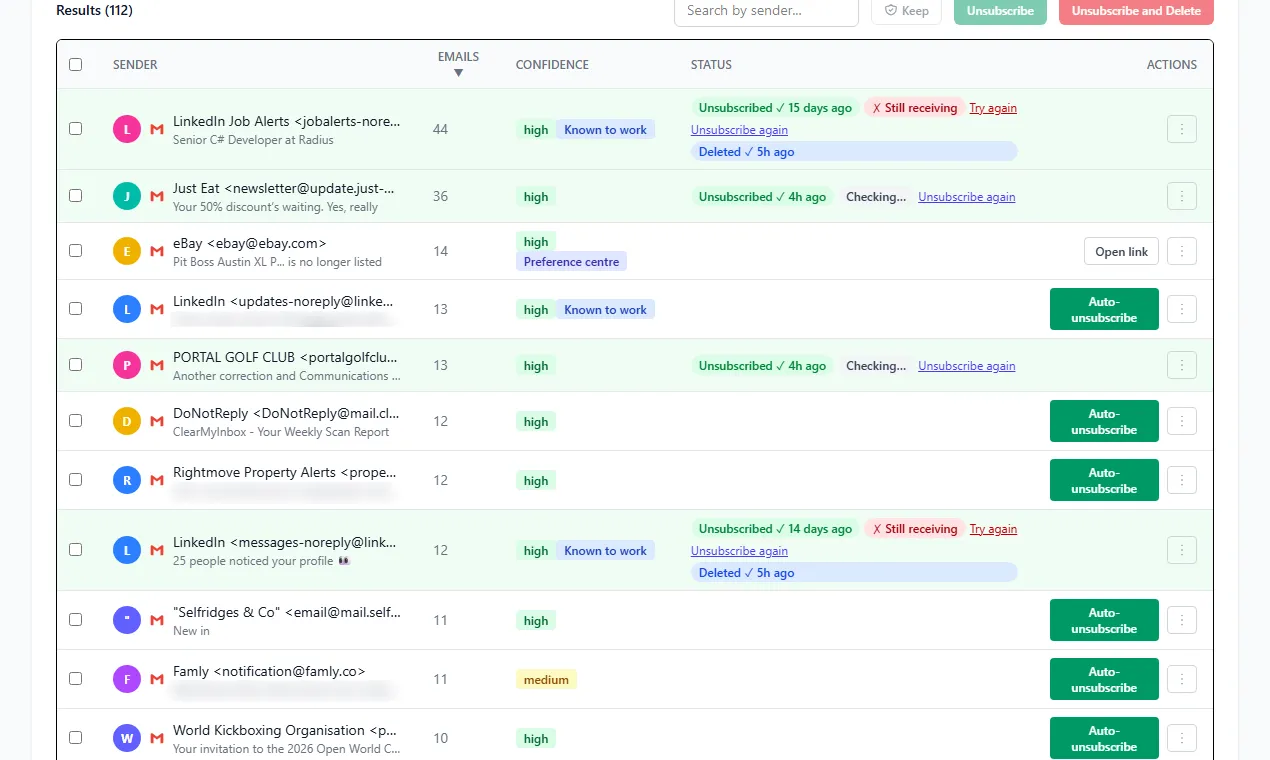
A Teams summary is an account notification with a setting behind it, so the dropdown above is the fix. The marketing around it is a different job: Slack, Zoom and every other work tool send their own newsletters and product updates with an unsubscribe link in the footer. ClearMyInbox connects to your Gmail, Outlook, Yahoo or any IMAP mailbox, scans it for every sender with an unsubscribe link, and unsubscribes from the ones you pick in one go. It then re-checks each sender and labels it Confirmed stopped or flags it as still emailing. The Free plan includes 10 automatic unsubscribes a month, and manual ones are unlimited. Our Slack emails and Zoom emails guides cover the two tools that most often sit next to Teams.
Frequently asked questions
How do I stop the missed activity emails from Teams?▾
In Teams, select Settings and more, then Settings, then Notifications and activity. Under Missed activity emails, open the dropdown and choose the frequency you want, or the option that turns them off. Microsoft's article says the setting lets you "set the frequency of summary emails that detail your missed activity or turn them off altogether".
Can I keep Teams notifications but stop the emails?▾
Yes. Microsoft documents the email summary as its own setting (Missed activity emails) and the banner and Activity feed alerts as separate dropdowns under Chats and channels on the same Notifications and activity page. Microsoft's articles treat the digest and the in-app notifications as separate settings and do not say that one changes the other.
Does muting Teams notifications stop the emails too?▾
Microsoft's article lists "Mute all notifications (except for calls and meetings)" under General notification settings, available on Windows only, and lists Missed activity emails as a separate setting. It does not say that one changes the other, so set both if you want both quiet.
Why does Teams email me about a channel I do not follow?▾
Each channel has its own notification setting: to the right of the channel name, select More channel options, then Manage notifications, and turn notifications for new messages or posts on or off. The account-level dropdowns under Chats and channels cover every channel at once. Microsoft documents no switch for a whole team, so a noisy team is handled channel by channel.
How do I turn off Teams notification emails on my phone?▾
Microsoft's mobile instruction is: tap your profile picture at the top left of the mobile app, then select Notifications. The Missed activity emails dropdown is described in the two articles under Settings and more, then Settings, then Notifications and activity; neither article says whether the phone's Notifications screen shows it. If yours does not, open Teams on a computer or in a browser and use the Settings path there.