How to block emails on Outlook
To block emails on Outlook, go to Settings, then Mail, then Junk email, add the address under Blocked senders and save. Everything from it then lands in your Junk Email folder. The block hides the mail rather than stopping it, and a sender who switches address is back in your inbox.
Try ClearMyInbox free - bulk unsubscribe in one click, free to start.
Block a sender in Outlook on the web and the new Outlook
Outlook.com, Outlook on the web and the new Outlook for Windows share one settings page. Microsoft's steps:
- If you have more than one account, pick the account you want to change.
- Select Settings, then Mail, then Junk email.
- Under Blocked senders, enter the email address and select Add.
- Select Save.
Any address on the list goes straight to the Junk Email folder. To unblock someone, open the same page, select the address and select the remove icon, then save again.
Block a sender in classic Outlook for Windows
The older desktop app, the one with the ribbon, offers two routes:
- Right-click a message from the sender, then select Block, then Block Sender. That message moves to the Junk Email folder at once and future messages follow it.
- Add addresses by hand through Junk E-mail Options, which also takes whole domains.
- On the Home tab, in the Delete group, select Block, then Junk E-mail Options.
- On the Blocked Senders tab, select Add.
- Enter the email address or the Internet domain name to block.
- Select OK, and repeat for each entry you want to add.
Block a sender in Outlook for Mac
On a Mac the block is a toolbar button:
- In the message list, select a message from the sender you want to block.
- In the toolbar, select Block.
Outlook adds the sender's address to the blocked senders list and moves any new mail from them to the Junk folder. To unblock, open the Outlook menu, select Tools, then Junk Email Preferences, select the address or domain under Blocked Senders and choose Remove the selected sender. Microsoft's note on that page matters if the button does nothing: in Outlook for Mac, the block and unblock option only works for Exchange accounts, such as Outlook.com or a work mailbox hosted by Exchange.
Block a sender in the Outlook app on iPhone, iPad or Android
The mobile app puts the block behind the junk report:
- Select the email you want to report.
- Tap the three dots at the top right of the screen.
- Select Report Junk.
- Select Block Sender. Junk and Phishing are the other two choices.
The mobile app also has Sender Screening, under Settings, then Account, then your account. With it on, emails from new senders appear at the top of your inbox for you to mark as allowed or blocked, and Manage Senders moves addresses between the two lists. Future emails from blocked senders do not go to your inbox.
Block a whole domain in Outlook
A shop that writes from offers@, news@ and noreply@ needs a domain block rather than three address blocks. Outlook documents it in the same places:
- Outlook on the web and the new Outlook: under Settings, Mail, Junk email, enter the domain in Blocked domains, select Add, then Save.
- Classic Outlook: the Blocked Senders tab in Junk E-mail Options accepts an Internet domain such as example.com as well as a single address.
- Outlook for Mac: Junk Email Preferences lists domains next to addresses, and the same Remove button takes either off the list.
Microsoft suggests domains when a list is getting long, because one domain is one entry however many addresses it covers.
Block emails with certain words: an Outlook rule
Neither list looks at the subject or the body. For "every email with this word in the subject", Microsoft's tool is a rule. Its page gives the Settings, Mail, Rules route for Outlook.com and Outlook on the web, and for the new Outlook a right-click on a message, then Rules, then Create rule; the full path, as written for Outlook.com:
- Select Settings, then Mail, then Rules.
- Select Add new rule.
- Type a name in Name your rule, then select a condition and an action from their lists. Add a condition and Add an action take more of each, and Add exception names mail the rule must leave alone.
- Press Save.
Two cautions from the same page: in classic Outlook, certain rules only run when Outlook is on, and some rules created in classic Outlook cannot be processed by the new Outlook because they are client-side rules. A rule made in the browser avoids both.
Why can't I block emails on Outlook anymore?
Three reasons come straight from Microsoft's pages. First, the new Outlook does not support blocking senders for third-party accounts such as Gmail, Yahoo or iCloud that you have added to it; the block has to be set in that mailbox, which our guides to blocking an address in Gmail, blocking emails on Yahoo and blocking emails on iPhone cover. Second, the blocked and safe sender lists together hold up to 10,000 entries, and a full list refuses new ones; switching the repeat offenders to domain entries frees space. Third, reporting a message does not block: Microsoft's phishing page says the sender is reported but not blocked from sending you more, and tells you to add them to the blocked senders list as well.
Unsubscribe from Outlook mail you asked for before you block it
Blocking a newsletter does not cancel it. The sender still counts you as a subscriber and keeps sending, Outlook keeps filing each message in Junk, and the senders you actually need to keep an eye on are now mixed in with it. For mail you once asked for, use the unsubscribe option instead; our guide to unsubscribing from emails on Outlook shows where it is in each version of Outlook. If you are not sure which button fits which sender, how to stop unwanted emails in Outlook walks through the choice, and how to stop junk email in Outlook covers the junk filter itself.
ClearMyInbox and the Outlook senders that ignore unsubscribe
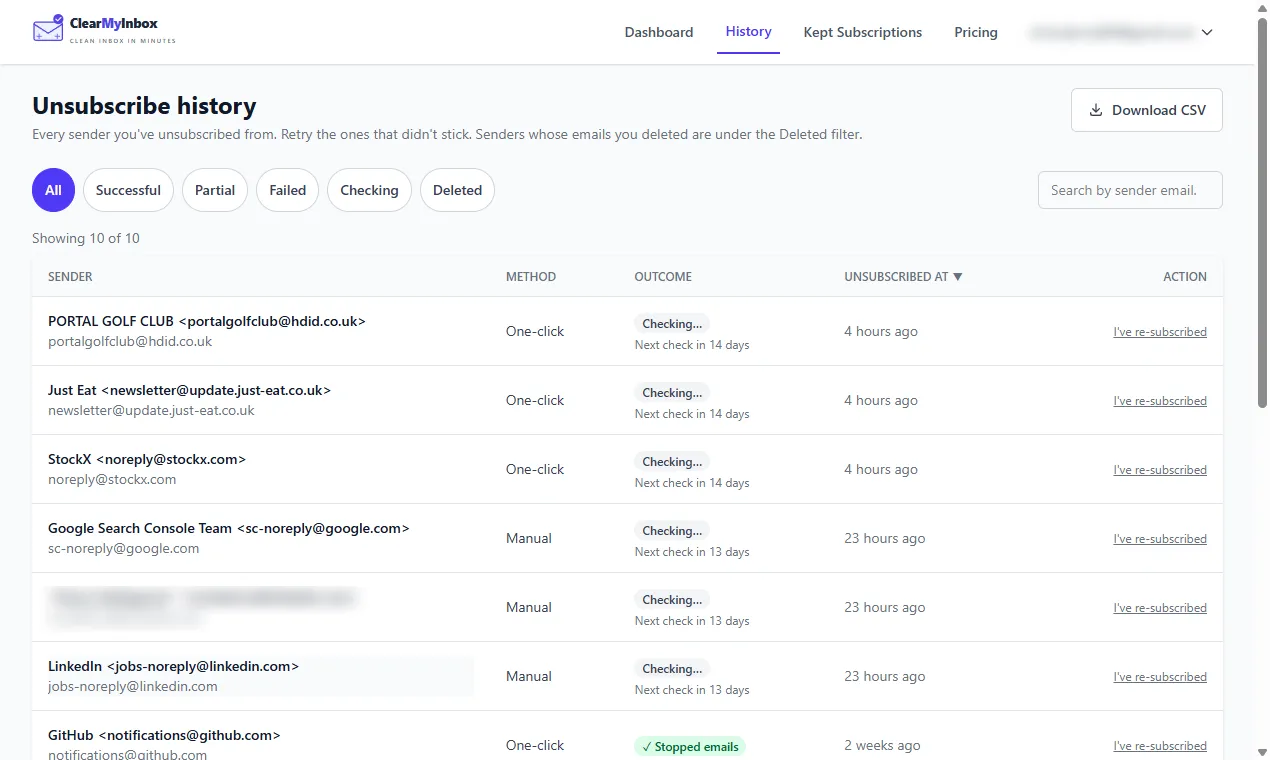
ClearMyInbox works with Outlook accounts. It scans the mailbox for every sender with an unsubscribe link, unsubscribes from the ones you pick in one go, then re-checks each sender and labels it Confirmed stopped or flags it as still emailing. The flagged senders are the ones that ignored a proper request, and those are the addresses and domains worth adding to Outlook's blocked list, instead of blocking everything and hoping.
Questions about blocking in Outlook
How do I permanently block an email sender in Outlook?
An entry on the blocked senders list stays until you remove it. What undoes it in practice is the sender changing address, so for a persistent one enter the domain rather than the address. Classic Outlook goes one step further and can block whole country codes: on the Home tab, in the Delete group, select Block, then Junk E-mail Options, open the International tab, select Blocked Top-Level Domain List, tick the country or region codes to block (or Select All), then select OK in both dialog boxes.
Does the blocked sender know?
No. Outlook tells the sender nothing. Their messages are still delivered to your account and moved to Junk Email, which is also why a block never stops them sending.
Does a block remove what is already in my inbox?
In Outlook on the web and the new Outlook, Microsoft's page says only where new mail from a blocked sender goes; it does not describe the list clearing anything older. For the mail already there, Sweep removes a sender's existing messages in one go, as our guide to cleaning up your Outlook inbox shows.
Is it the same for Hotmail, Microsoft 365 and Outlook on iPad?
A Hotmail or Live address signs in to Outlook.com, so the Settings, Mail, Junk email steps apply to it. A Microsoft 365 work or school account uses the same page in Outlook on the web and the new Outlook, and Junk E-mail Options in classic Outlook; Microsoft notes that an administrator can send blocked mail to quarantine instead of Junk. The Outlook app on iPad is the same app as on iPhone, so Report Junk, then Block Sender.