How to block an email address in Gmail
To block an email address in Gmail, open a message from the sender, click More (the three dots next to Reply) and choose Block. From then on their mail goes to Spam. Blocking hides one address; it does not stop the sender, and mail from a new address still lands in your inbox.
Try ClearMyInbox free - bulk unsubscribe in one click, free to start.
Block a sender in Gmail on a computer
Gmail keeps the block control inside the message, not in Settings. These are Google's own steps:
- On your computer, open Gmail.
- Open the message from the sender you want to block.
- Next to the Reply button, click More, then click Block "sender".
After you block a sender, all future emails from them go to Spam, so a blocked message can still be read there if you ever need it.
Block an email address in Gmail on iPhone or Android
The Gmail app on Android, iPhone and iPad uses the same menu, so the steps match on a phone:
- Open the Gmail app and open a message from the sender.
- At the top right, next to Reply, tap More.
- Tap Block "sender".
Google's help page documents the list of blocked senders on a computer only, so review or edit the list there, as described next.
How do I unblock someone in Gmail?
Two routes, both from Google's page. From the message: open it, click More and choose Unblock "sender". From the list of everyone you have blocked:
- At the top right of Gmail, open Settings, then click See all settings.
- At the top, click Filters and Blocked Addresses.
- Check the box next to a sender, then click Unblock selected addresses.
When you unblock a sender, all future emails from them go to your inbox again.
Block an email address in Gmail before they email you
The Block button needs an open message: Google's steps start from one, so an address that has not written yet, or whose messages you have already deleted, cannot be blocked that way. Google's route for those is a filter, which starts from the search box rather than from a message, with the address as the search criteria. The steps are in the next section, because the same filter is how you block a whole domain.
Block a whole domain in Gmail with a filter
The Block button takes one address at a time. A company that writes from several addresses, or a sender who keeps changing address, needs a filter instead. Google documents filters on a computer:
- Open Gmail and, in the search box at the top, click Show search options.
- Enter your search criteria: the sender's address, or the part every address shares, such as
@example.com. Click Search if you want to see what the filter would catch. - At the bottom of the search window, click Create filter.
- Choose what you'd like the filter to do.
- Click Create filter.
Google lists sending the mail to a label, archiving it, deleting it, starring it and forwarding it as what a filter can do. Deleting is the nearest to a block; archiving keeps the mail reachable under All Mail. A filter is also the honest answer to "how do I block emails" when the problem is a pattern rather than a person: a subject line, a mailing list, a domain. Filters live under the same Filters and Blocked Addresses tab as blocks, so you can edit or remove them later.
Block a domain for a work or school Gmail account
A Google Workspace account has one more option, but only its administrator can use it. Google documents a Blocked senders setting in the Admin console that rejects mail from listed addresses or domains for everyone in the organisation, and sends the sender a rejection notice, which a personal Gmail block never does:
- In the Admin console, open the Gmail settings and go to Spam, Phishing and Malware.
- Scroll to Blocked senders. Click Configure for a first rule, Edit to change one, or Add another rule.
- Name the rule, add the addresses or domains to block, and optionally customise the rejection notice or exempt approved senders.
- Click Save.
If you use Gmail through work or school and a sender should be shut out for the whole company, that is the request to make of your administrator. Google writes this setting up for administrators only; a personal account has no equivalent.
Unsubscribe before you block a Gmail newsletter
Newsletters, shop offers and app notifications are the wrong thing to block. A block does not unsubscribe you: the sender still counts you as a subscriber, keeps sending, and Gmail keeps moving each message to Spam, where it sits next to real spam you might want to check. Use the Unsubscribe link Gmail shows next to the sender's name instead: that asks the sender to take you off the list. Our guide to unsubscribing from emails on Gmail covers where the link is on desktop and in the app, and what to do when it is missing. Save Block for people and companies you never agreed to hear from, and Report spam for mail that really is spam, as explained in how to block spam emails on Gmail.
Where ClearMyInbox fits: the senders that ignore unsubscribe
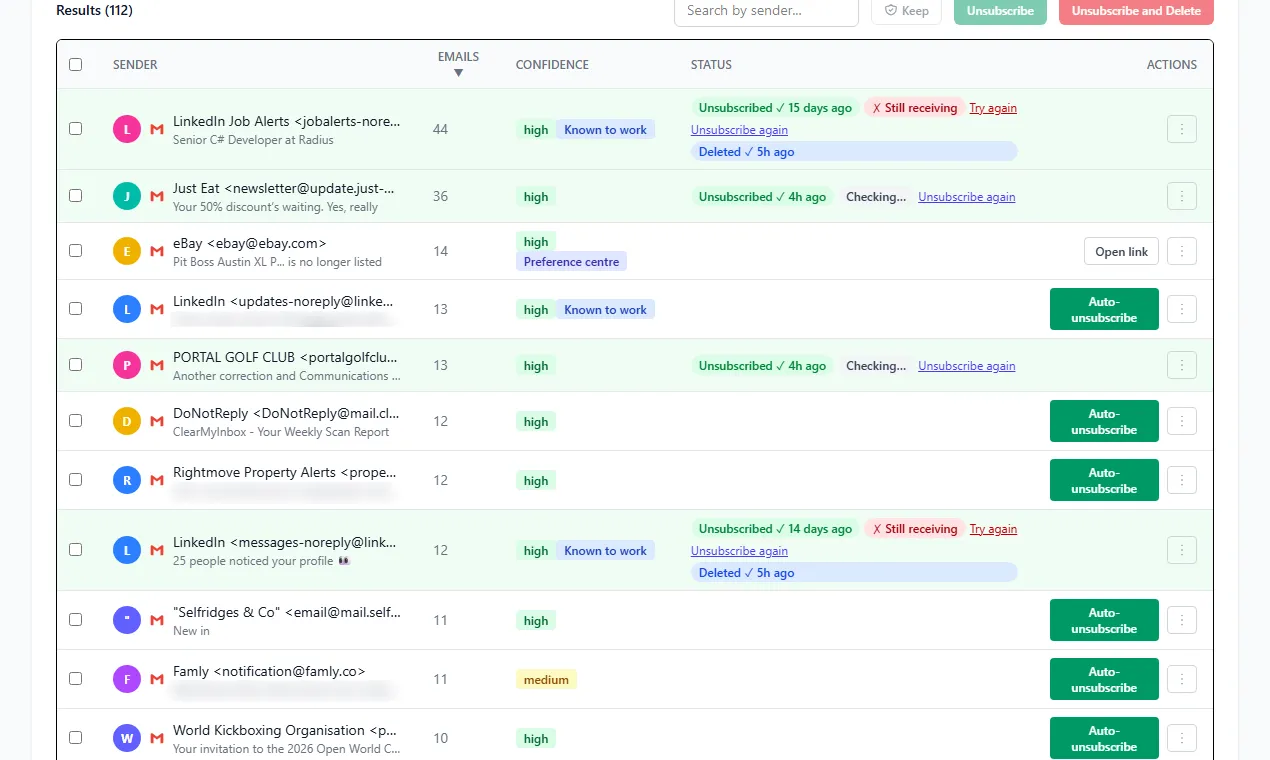
Blocking one address at a time is fine for one nuisance and hopeless for forty. ClearMyInbox connects to your Gmail account, scans it for every sender with an unsubscribe link, and unsubscribes from the ones you pick in one go. It then re-checks each sender and labels it Confirmed stopped or flags it as still emailing. The flagged ones are the senders that ignored a proper request, so you block exactly those, with Gmail's Block button or a filter, instead of guessing.
Questions about blocking in Gmail
When you block someone on Gmail, what do they see?
Nothing. Gmail sends no notice and no bounce. Their messages are still delivered to your account and filed in Spam, so from their side every email went through as normal, which is also why blocking never stops them sending.
Why am I still getting emails from a blocked sender in Gmail?
Check the address on the new message first: a block matches the exact address, and senders often write from several, or change them. Block the new one, or replace the blocks with one filter on the domain. If the message is in Spam, the block is working; Google's page says blocked mail goes to Spam, not away. And if it is a mailing you once signed up to, the sender may have moved you to another list, which is an unsubscribe problem, not a block problem.
Can you block someone from sending you mail at all?
Not with a personal Gmail account. Block files their mail in Spam and a filter can delete it on arrival, but neither refuses the message or tells the sender to stop. The only Gmail control that rejects mail outright is the Workspace administrator setting above, which is why it exists for organisations and not for individuals. For a sender you have a relationship with, unsubscribing is the one request that actually reaches them.
How do I block emails on Outlook, Yahoo or an iPhone?
Each mailbox keeps its block control somewhere different. We have the same guide for Outlook, Yahoo Mail and the Mail app on iPhone, each taken from the provider's own help pages.