How to stop Indeed emails
To stop Indeed emails, sign in, open Settings, then Communications settings, and work through the Email section: pause or delete each job alert, turn off recommended jobs and the other extra emails, and check Resume contacts if recruiters write to you. The unsubscribe link in one Indeed email stops only that one type.
Try ClearMyInbox free - bulk unsubscribe in one click, free to start.
Indeed emails come from three different switches
Indeed's help article "Managing your communications settings" lists the email it sends in three groups, and each is controlled separately:
- Job and company alerts: the daily or weekly emails matching your saved searches and followed companies. Each alert is its own switch.
- Resume contacts: emails from employers and recruiters interested in your profile. These only exist while employers can find you on Indeed, so the control is in the Profile settings, not the email list.
- Additional emails: application and account status, recommended jobs, career guidance, and feedback or survey requests. Recommended jobs sit here, not with the alerts.
Indeed's privacy policy (updated 4 November 2026) adds the fourth group you cannot switch off: administrative messages about your account, which it says it may still send after you opt out of marketing.
Stop or pause Indeed job alerts
From the help article "Starting, stopping and managing job alerts". You need to be signed in; alerts belong to an account.
- Open Settings, then Communications settings, then Email.
- Under Job and company alerts, use the pencil icon to change an alert's job titles, locations or frequency. Daily and weekly are the options, and Indeed sends nothing on a day with no new matches.
- Toggle an alert off to pause it. Toggling it back on resubscribes you.
The article's other route is the alert email itself: open it and use the unsubscribe option inside. It notes that alerts are deleted one at a time, so five saved searches are five unsubscribes whichever route you take.
Turn off recommended jobs and the other extra emails
The recommended-jobs email is the one most people mean when they say Indeed will not stop. It is not an alert, so pausing your alerts leaves it running. On the same Communications settings page, find the Additional emails group and switch off the ones you do not want: recommended jobs, career guidance, and feedback and surveys. Application and account status emails live in the same group; leave those on while you have applications open, because interview requests and employer responses arrive that way.
Stop recruiter and employer emails
Resume contacts are different again. Indeed's article says these messages come from employers and recruiters who found your profile, and that the preference is changed in the Profile settings menu, where you decide whether employers can see you. Set the profile to hidden and the contacts stop at the source. If you are actively looking, keep it visible and accept the emails; they are the job search working.
Indeed texts
Communications settings has a Text message section with two switches: recruiter invites, and employer responses and interview updates. The privacy policy's instruction for any Indeed text is to reply STOP, which it says unsubscribes you from all Indeed SMS and call alerts except those tied to Text2Apply and hiring events.
Why the unsubscribe link in one Indeed email is not enough
Indeed's privacy policy says the unsubscribe link "will only opt you out of that particular type of marketing message". So the link in a recommended-jobs email leaves your alerts alone, and the link in an alert leaves recommended jobs alone. To opt out of all marketing at once, the policy gives an email route: write to privacy-dept@indeed.com. Either way, it says, administrative messages such as account notices may continue.
Indeed emails after you close your account
Indeed's "Closing an account" article asks you to review Communications settings and unsubscribe from unwanted emails before you close, and answers the question "I keep getting emails after closing my account" with another question: do you have more than one account? Two sign-ups is the cause it names. The article also says an account cannot be paused; the alternative it offers is unsubscribing from job alerts, emails and other notifications in Communications settings while the account stays open. Account settings, including Close my account, are at secure.indeed.com/settings.
Indeed emails on your phone
Indeed's help articles describe the website and give no separate steps for the Indeed Job Search app, so if the app's menus do not match, open indeed.com in your phone's browser, sign in and use Settings there; it is the same account. Deleting the app changes nothing, because the emails come from the account, not the app. The unsubscribe link inside an alert email works from any mail app, and the Gmail and Outlook apps add their own Unsubscribe button in the header for senders that support it; see our guides to unsubscribing from emails on Gmail and on Outlook.
When Indeed emails keep coming
- Check which of the three groups the new email belongs to, and switch that one off. A recommended-jobs email after you paused your alerts is the Additional emails group.
- Check the To address for a second account.
- If an unsubscribed type still arrives after ten business days, the period US law allows a sender to act, block or filter that exact sender at your mailbox. The provider's own steps are in our guides to blocking an email address in Gmail, blocking emails on Outlook, blocking emails on Yahoo and blocking emails on iPhone. Do not block every indeed.com address while you have applications open, or employer responses go to Spam with the alerts.
What ClearMyInbox does with job boards
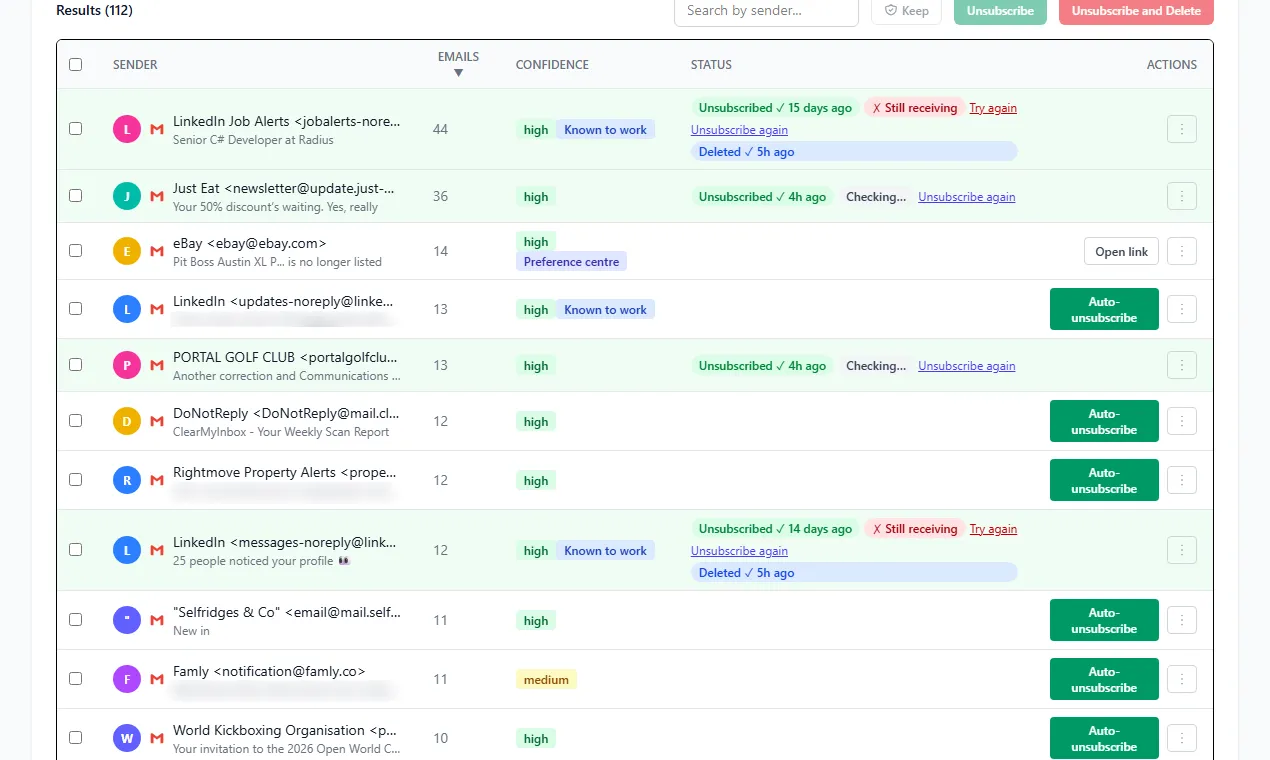
Indeed is rarely the only board writing to a job seeker; LinkedIn, ZipRecruiter and Glassdoor each have their own three or four switches. ClearMyInbox connects to your Gmail, Outlook, Yahoo or any IMAP mailbox, scans it for every sender with an unsubscribe link, and unsubscribes from the ones you pick in one go. It then re-checks each sender and labels it Confirmed stopped or flags it as still emailing, so the recommended-jobs stream you missed shows up as a flag. The Free plan includes 10 automatic unsubscribes a month, and manual ones are unlimited.
Frequently asked questions
Why am I still getting Indeed emails after unsubscribing?▾
Because the link you clicked covered one type, as Indeed's policy says. Check all three groups in Communications settings, then the To address for a second account.
Can I keep one job alert and stop the rest?▾
Yes. Each alert under Job and company alerts has its own toggle, so leave one on and switch the others off. Use the pencil on the one you keep to make it weekly if daily is too much.
What is the difference between pausing an Indeed alert and deleting it?▾
Pausing is the toggle: Indeed's article says toggling an alert off pauses it and toggling it on "resubscribes" you, so the saved search stays in your settings for later. Deleting is the unsubscribe option inside the alert email, which removes that alert, and the article notes each alert is deleted separately. Pause if the search might be useful again; delete if it never will.
Do I lose my saved jobs or applications when I unsubscribe?▾
No. Communications settings change what Indeed sends, not what it stores. Saved jobs, applications and your profile stay as they were, and application status emails keep arriving if you leave that switch on. For the other boards, our guide to stopping recruiter emails covers the pattern, and LinkedIn emails have their own page.